
To use Docker and docker-compose, you will need to have them installed on your machine. If you don’t have them installed, you can follow the instructions on the Docker website to install them.
Pull the MariaDB Docker Image
First, we need to pull the MariaDB image from the Docker Hub. This image contains everything needed to run MariaDB.
docker pull mariadb:latest
This command will download the latest version of the MariaDB image. You can specify a particular version if needed:
docker pull mariadb:10.5
Create a Docker Network (Optional)
Creating a custom network allows better communication between containers. This step is optional but recommended for more complex setups involving multiple containers.
docker network create mariadb_network
Run a MariaDB Container
Now, let’s run a MariaDB container using the image we just pulled. We’ll map a local port to the container’s port and set up some environment variables for the root password and database name.
docker run --name mariadb-container -d \
    --network mariadb_network \
    -e MYSQL_ROOT_PASSWORD=my-secret-pw \
    -e MYSQL_DATABASE=mydatabase \
    -p 3306:3306 \
    mariadb:latest
- –name mariadb-container: Names the container for easier reference.
- -d: Runs the container in detached mode.
- –network mariadb_network: Connects the container to the custom network.
- -e MYSQL_ROOT_PASSWORD=my-secret-pw: Sets the root password for MariaDB.
- -e MYSQL_DATABASE=mydatabase: Creates a database named mydatabase.
- -p 3306:3306: Maps port 3306 on the host to port 3306 on the container.
Verify the MariaDB Container is Running
Use the following command to check if the MariaDB container is running:
docker ps
Expected Output:
CONTAINER ID   IMAGE          COMMAND                  CREATED         STATUS         PORTS                    NAMES
abc123def456   mariadb:latest "docker-entrypoint.s…"   5 seconds ago   Up 5 seconds   0.0.0.0:3306->3306/tcp   mariadb-container
Connecting to the MariaDB Container
Now that the MariaDB container is running, you can connect to it using a MySQL client. If you have the MySQL client installed locally, you can connect using:
mysql -h 127.0.0.1 -P 3306 -u root -p
After entering the root password (my-secret-pw), you should be connected to your MariaDB instance.
Using Docker Compose
Docker Compose can manage multi-container setups with a simple configuration file. Here’s how to set up MariaDB using Docker Compose:
Create a docker-compose.yml file
Create a docker-compose.yml file in the root directory of your project. This file will define the containers that you want to run as part of your development environment.
version: '3.1'

services:
  mariadb:
    image: mariadb:latest
    container_name: mariadb-compose
    environment:
      MYSQL_ROOT_PASSWORD: my-secret-pw
      MYSQL_DATABASE: mydatabase
    ports:
      - "3306:3306"
    networks:
      - mariadb_network

networks:
  mariadb_network:
    driver: bridge
In this example, we are using the mariadb:latest image and setting several environment variables to configure the database. We are also exposing the default MariaDB port (3306) so that we can connect to the database from our application.
Run Docker Compose to start the container:
docker-compose up -d
Expected Output:
Creating network "projectname_mariadb_network" with driver "bridge"
Creating mariadb-compose ... done
This command will pull the necessary images and start the containers in the background. Run without -d to start the container in the foreground. You can use the following command to see the status of the containers:
docker-compose ps
Connecting to MariaDB via Beekeeper Studio
Download Beekeeper Studio (Free) >
Beekeeper Studio is an open source SQL editor that supports MariaDB. Here’s how to connect to your Docker-based MariaDB instance using Beekeeper Studio:
- Open Beekeeper Studio and click on
New Connection. - Select MariaDB as the connection type.
- Enter the following connection details:
- Host: 127.0.0.1
- Port: 3306
- Username: root
- Password: my-secret-pw
- Database: mydatabase (optional)
- Click
Connectto establish the connection.
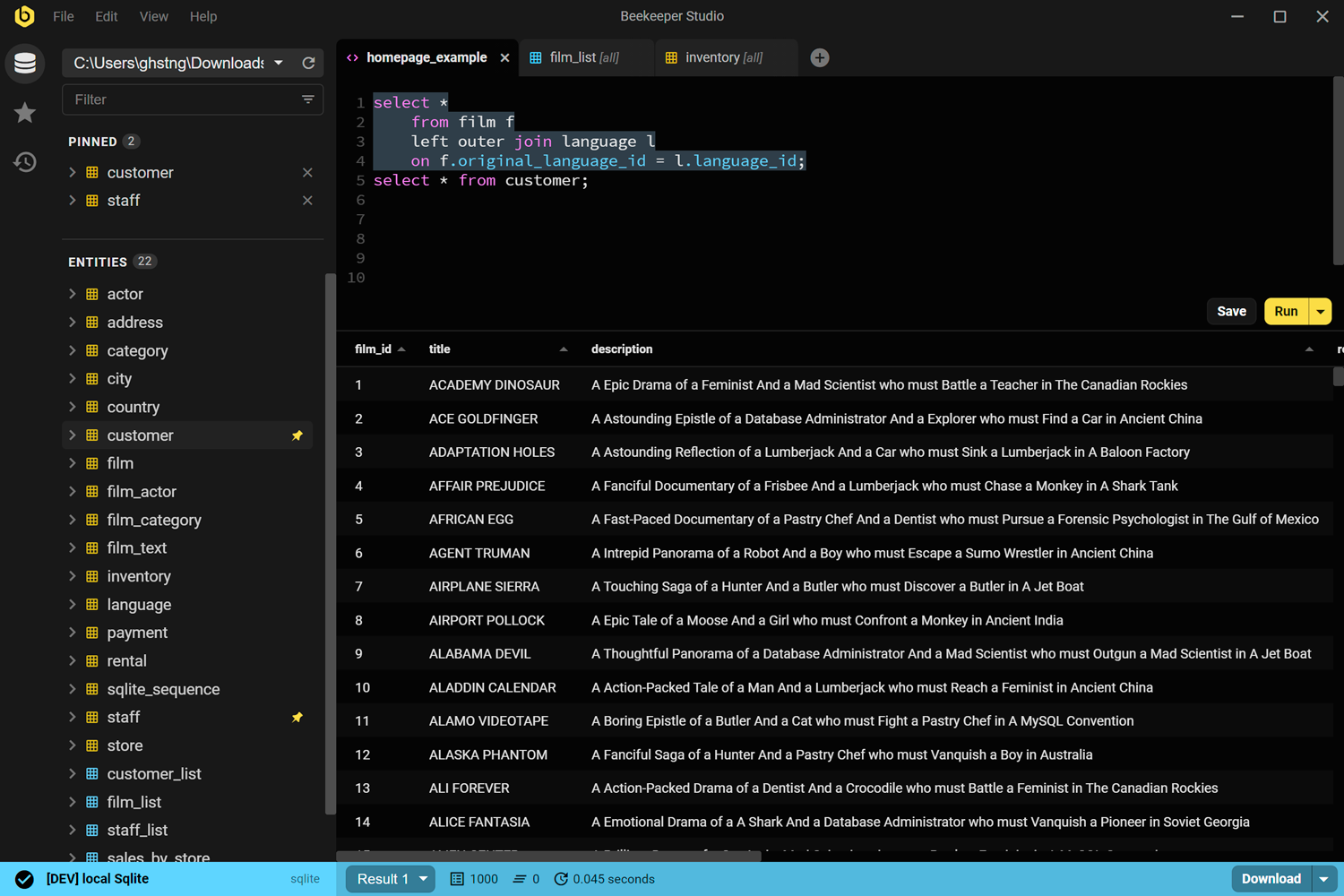
You’ll get a nice, pleasant interface you can use to edit & query your MariaDB database:
Managing Your Development Environment
To stop the MariaDB container:
docker stop mariadb-container
To start the container again:
docker start mariadb-container
To remove the container:
docker rm -f mariadb-container
Conclusion
Setting up a MariaDB development environment using Docker provides a robust setup that’s easy to manage and replicate. Using Docker Compose adds scalability, making it an excellent choice for both small projects and larger development teams.
Other articles you may enjoy:
 Beekeeper Studio É Uma GUI de Banco de Dados Gratuita e de Código Aberto
A melhor ferramenta de consultas SQL e editor que já usei. Fornece tudo que preciso para gerenciar meu banco de dados. - ⭐⭐⭐⭐⭐ Mit
Beekeeper Studio é rápido, intuitivo e fácil de usar. Beekeeper suporta muitos bancos de dados e funciona muito bem no Windows, Mac e Linux.
O Que Os Usuários Dizem Sobre o Beekeeper Studio
"O Beekeeper Studio substituiu completamente meu antigo fluxo de trabalho com SQL. É rápido, intuitivo e torna o trabalho com banco de dados agradável novamente."
"Já experimentei muitas GUIs de banco de dados, mas o Beekeeper encontra o equilíbrio perfeito entre recursos e simplicidade. Simplesmente funciona."