
menu
save_alt Download

CSV to SQL Converter

Turn CSV files into INSERT, UPDATE, or CREATE TABLE statements for any database.

lock100% in browser

Import CSV data to your database in 2 minutes flat

This tool is designed to just 'figure things out', but also give you a way to tweak the output if it gets something wrong.

table_chart

Smart CSV parsing

This tool uses industry-standard CSV parsing libraries and built-in heuristics to make sure it can handle all the common types of quoting, delimiter, and encoding by itself.

auto_awesome

SQL column type detection

Column types are figured out automagically by scanning the csv data, but sometimes it screws up, in that case you can set the types manually.

storage

Common database support

PostgreSQL, MySQL, SQLite, and SQL Server are supported - each has slightly different syntax which is why we allow you to choose.

lock

Safe to use

100% client-side code and no click tracking, ads, or other BS. We publish free tools to be helpful.

How to convert CSV to SQL

  1. Upload your CSV

    Paste or upload your CSV file. The converter will figure out the format itself.

  2. Review the output

    Make sure the SQL output looks how you'd expect, and that you're targeting the right SQL operation

  3. Tweak settings

    Tweak things like column types, database engine, or SQL statement type in the 'Output settings' dropdown.

  4. Run on your database

    Copy and paste into your database client. We obviously think you should use Beekeeper Studio, but we're biased :-).

Frequently Asked Questions

How do I convert a CSV file to SQL?

Paste your CSV data into the ‘input’ box at the top of the page. If something looks wrong, check the ‘Input settings’ dropdown to adjust the input format. You can also ‘upload’ a CSV file, this doesn’t really upload it to our servers, but just parses the file in your browser.

How do I create a new table from a CSV file?

Upload your CSV data then open the ‘Output settings’ dropdown to change the type of SQL to be generated. If you want to create a table, check the CREATE option :-)

How does the converter pick column types?

It guesses based on your data. It scans each column, takes a sample of values and uses that to decide what data type to use. Sometimes the converter guesses wrong, but in that case you can open the ‘Columns’ tab in ‘Output settings’ and manually change the type to your liking.

Can I override the auto-detected column types?

Yes, use the ‘Columns’ tab in ‘Output settings’ to change any column to the type you need.

Which delimiters are supported?

Comma, semicolon, tab, and pipe. It’s auto detected by scanning the first few rows of your data, you can override it in the ‘Input settings’ dropdown.

What if my CSV has no header row?

Open the ‘Input settings’ dropdown and turn off ‘First row has column names’!

How are empty cells and NULL values handled?

By default empty cells are detected as NULL. We also detect the following values as NULL: "NULL", \N. You can turn off the null detection to instead treat empty values as empty strings.

Is my data uploaded anywhere?

No, this whole tool runs locally in your browser, and our website has no invasive tracking.

How big a CSV file can I convert?

Because the conversion happens on your device, the limit is the memory on your device. For 99% of CSV files this will be fine, but if you have a super duper big file that even Excel struggles to open you might have an issue.

Some special characters look broken, why?

The tool reads files as UTF-8, and falls back to Windows-1252 (Excel’s encoding for CSV files). Check that your file is one of these formats and try again.

How can I just write a SQL query against my CSV, not convert it?

Try our CSV SQL Tool, which loads a CSV into a database in your browser so you can run SELECT queries on it.

Does this work for JSON files?

For JSON, use our JSON to SQL converter, which works exactly the same, but for JSON files.

Why do you offer a free tool? What's in it for you?

We’re just sort of weird like that I guess. Our primary product, Beekeeper Studio, is a downloadable database GUI with an extremely good free community edition, and all of our code is available on GitHub.
We’re making software we can be proud of, and that means making as many useful things free as we can.

Make SQL fun again

Have you tried Beekeeper Studio, our fast, good-looking SQL editor and database manager for Mac, Windows, and Linux? It's open source and there's a beefy free community edition too. My favorite parts:

  • check_circle Import CSV files straight into any table
  • check_circle Query editor with autocomplete and highlighting
  • check_circle Open source, with a free Community Edition
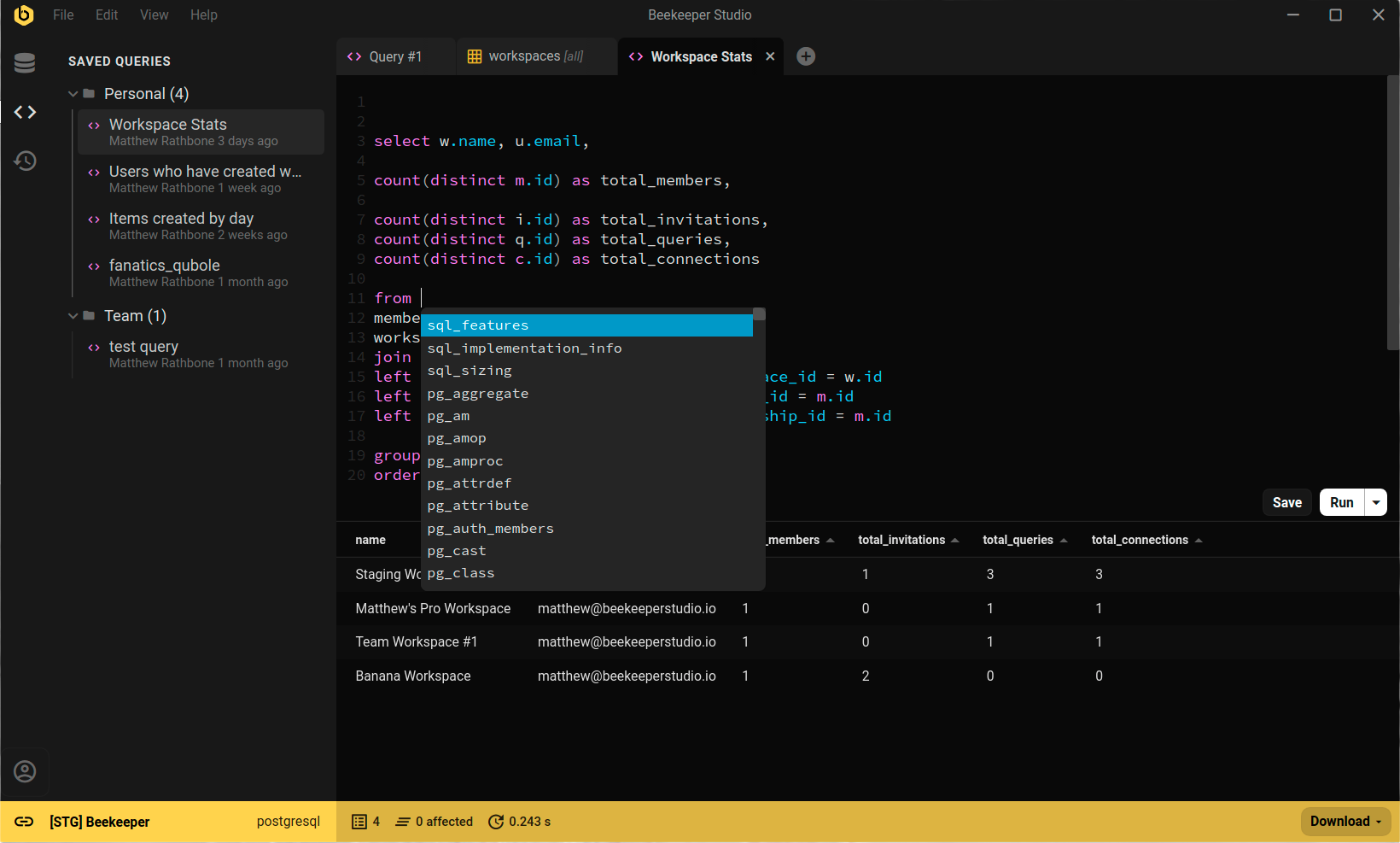
Beekeeper Studio running a query against PostgreSQL

Beekeeper Studio's Mission

Our mission is to create open source software in order to improve database accessibility for everyone the world over.

Our commitments to you:
  • 😍 Great Feels - Using our software should make you feel warm and fuzzy inside because it is so nice to use.
  • 🔒 Respects Privacy - No creepy ad-tracking or selling your personal information. By default we don’t even know when you install the app, it’s none of our business!
  • 💾 Works Offline - You will never need an internet connection to use the app (why should you?)
  • 🌍 Inclusive - We are 100% inclusive and have a code of conduct. Diversity and inclusivity are good for Beekeeper, the tech community, and the world.
  • 💪 Open Source - We will always provide a feature-full community edition under an OSI approved license.