
N’importe quel LLM généraliste t’écrira volontiers une requête SELECT. Là où ils pèchent, c’est pour savoir que ta table users s’appelle en fait accounts, que status est un enum stocké sous forme d’entier, et que deleted_at IS NOT NULL signifie que la ligne est supprimée logiquement, pas qu’elle n’existe pas. Tu finis par coller des instructions CREATE TABLE dans une fenêtre de chat, ce qui devient vite pénible et n’est plus à jour dès que ton schéma change.
La solution, c’est de donner au modèle un accès direct à ton schéma pour qu’il aille chercher ces infos lui-même au lieu que tu les lui expliques à chaque fois. Ce guide parcourt ce workflow de bout en bout : se connecter, poser une question en langage courant, vérifier ce qui revient, et utiliser l’IA pour expliquer ou nettoyer une requête que tu as déjà écrite. On utilise l’AI Shell de Beekeeper Studio pour l’illustrer concrètement, puisque c’est l’outil qu’on connaît le mieux, mais le workflow de fond (des prompts qui connaissent le schéma, une vérification avant exécution) s’applique quel que soit ton outil.
Si tu veux d’abord une comparaison plus large des outils SQL avec IA du marché, on a un tour d’horizon des apps et services SQL avec IA qui vaut le détour.
Ce qu’il te faut
- Une base de données à laquelle te connecter (Postgres, MySQL, SQLite, SQL Server, peu importe)
- Beekeeper Studio. L’IA qui connaît ton schéma n’est pas dans la Community Edition gratuite, mais tu peux l’essayer gratuitement pendant 14 jours, sans inscription ni carte bancaire
- Une clé API d’un fournisseur de LLM que tu utilises déjà (Claude et OpenAI fonctionnent tous les deux), ou un modèle Ollama local si tu préfères tout garder sur ta machine
Aucune marge sur les coûts d’API et aucun compte Beekeeper requis. Tu paies directement ton fournisseur de modèle, comme si tu appelais son API depuis un script.
Étape 1 : connecte-toi à ta base de données, puis ouvre un AI Shell au lieu d’un onglet de requête
Connecte-toi comme d’habitude. La seule différence avec ton workflow habituel : là où tu ouvrirais un nouvel onglet de requête, un menu déroulant te permet d’ouvrir un onglet AI Shell à la place.
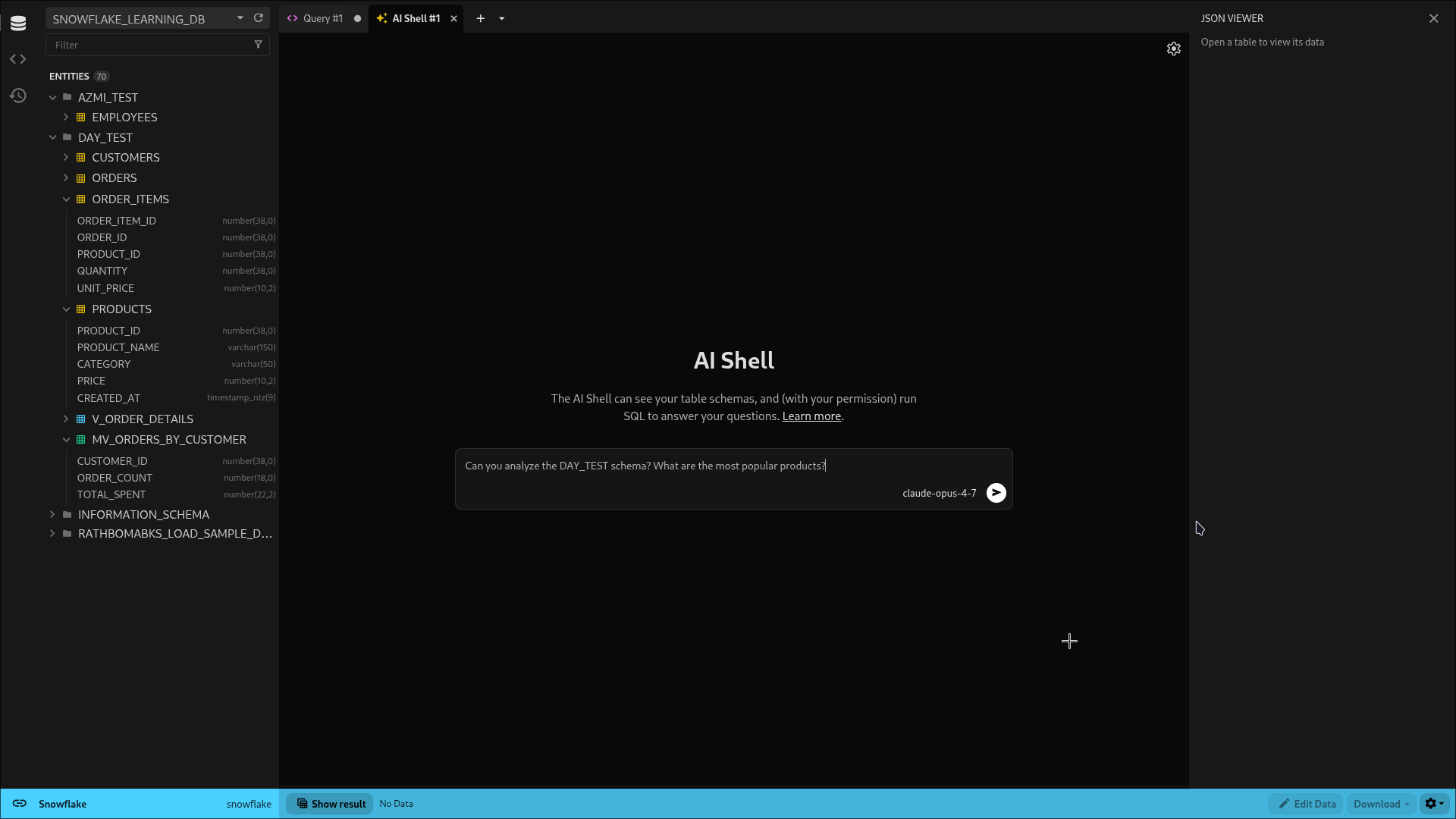
La première fois, tu choisis un fournisseur et tu colles ta clé API. Ensuite, elle est mémorisée pour la connexion, donc pas besoin de la ressaisir à chaque session.
Étape 2 : pose ta question en langage courant
Écris ce que tu veux vraiment savoir, pas une description de tes tables. L’AI Shell a déjà accès à ton schéma, donc inutile de l’expliquer au préalable.
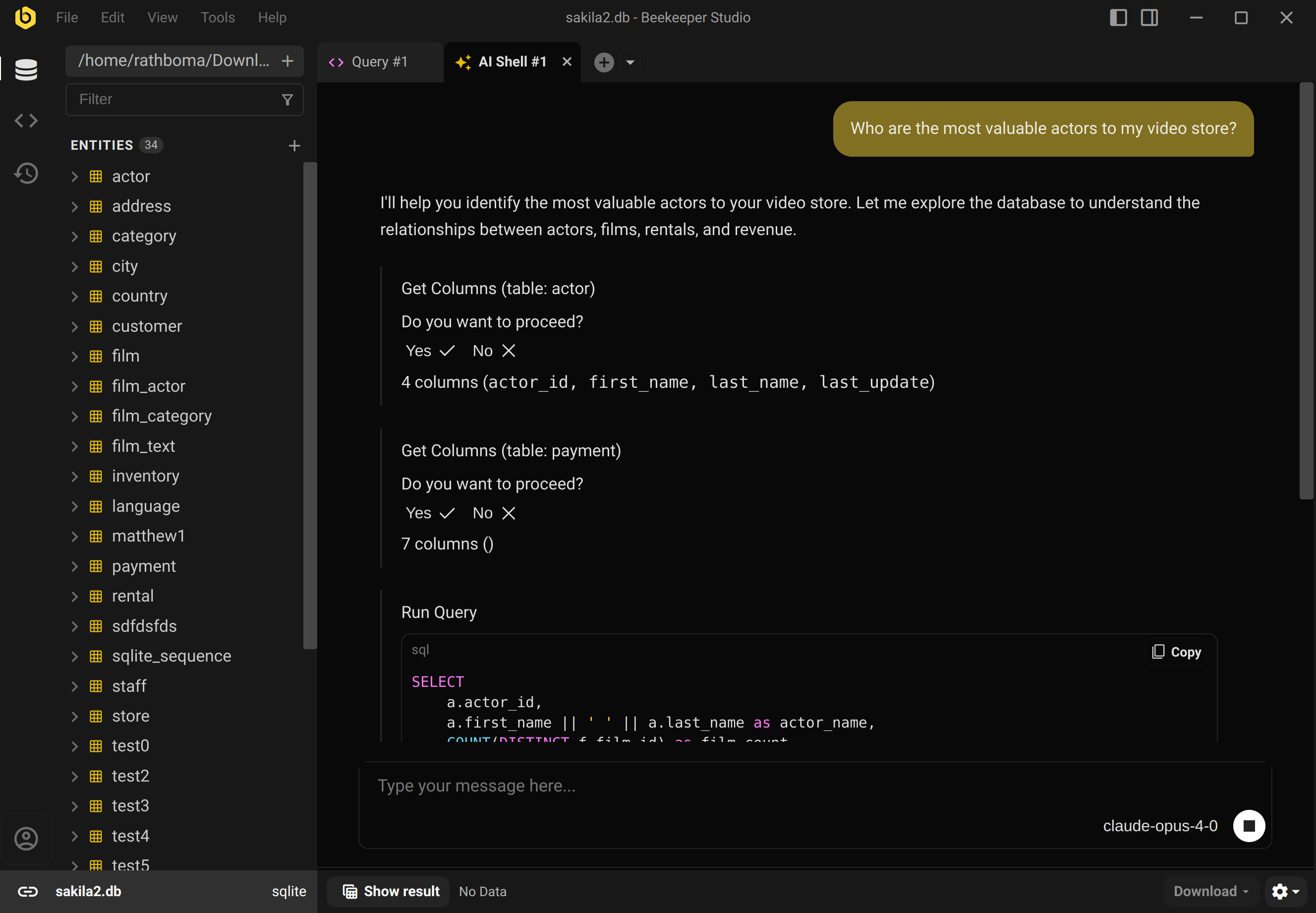
Regarde ce qui se passe ensuite : il consulte les colonnes des tables qu’il juge pertinentes avant d’écrire la moindre ligne de SQL. C’est ça qui compte vraiment ici. Il ne devine pas les noms de colonnes à partir du nom d’une table, il vérifie.
Étape 3 : vérifie avant d’approuver
Par défaut, l’AI Shell demande avant de faire quoi que ce soit : avant de lire le schéma d’une table, et avant d’exécuter une requête. Chaque étape a sa propre confirmation Yes / No, donc rien ne se passe sans que tu cliques.
C’est l’étape qu’on saute une fois qu’on fait confiance à l’outil, et c’est justement celle qu’il ne faut pas sauter. Lis le SQL généré avant de valider, surtout les conditions de JOIN et toute clause WHERE qui filtre des lignes. Un modèle qui se trompe légèrement sur la relation entre deux tables renverra quand même un résultat, juste le mauvais, et un chiffre faux mais plausible est plus dangereux qu’une erreur évidente.
Si tu préfères ne pas confirmer chaque lecture, il y a un réglage pour ça : Settings → General → Always allow execution of read-only queries. Il exécute automatiquement les requêtes SELECT mais demande toujours avant tout ce qui écrit des données. À activer une fois que tu as pris confiance dans l’outil sur ta propre base ; pas quelque chose que je recommanderais dès le premier jour.
Étape 4 : lis la réponse, pas seulement la requête
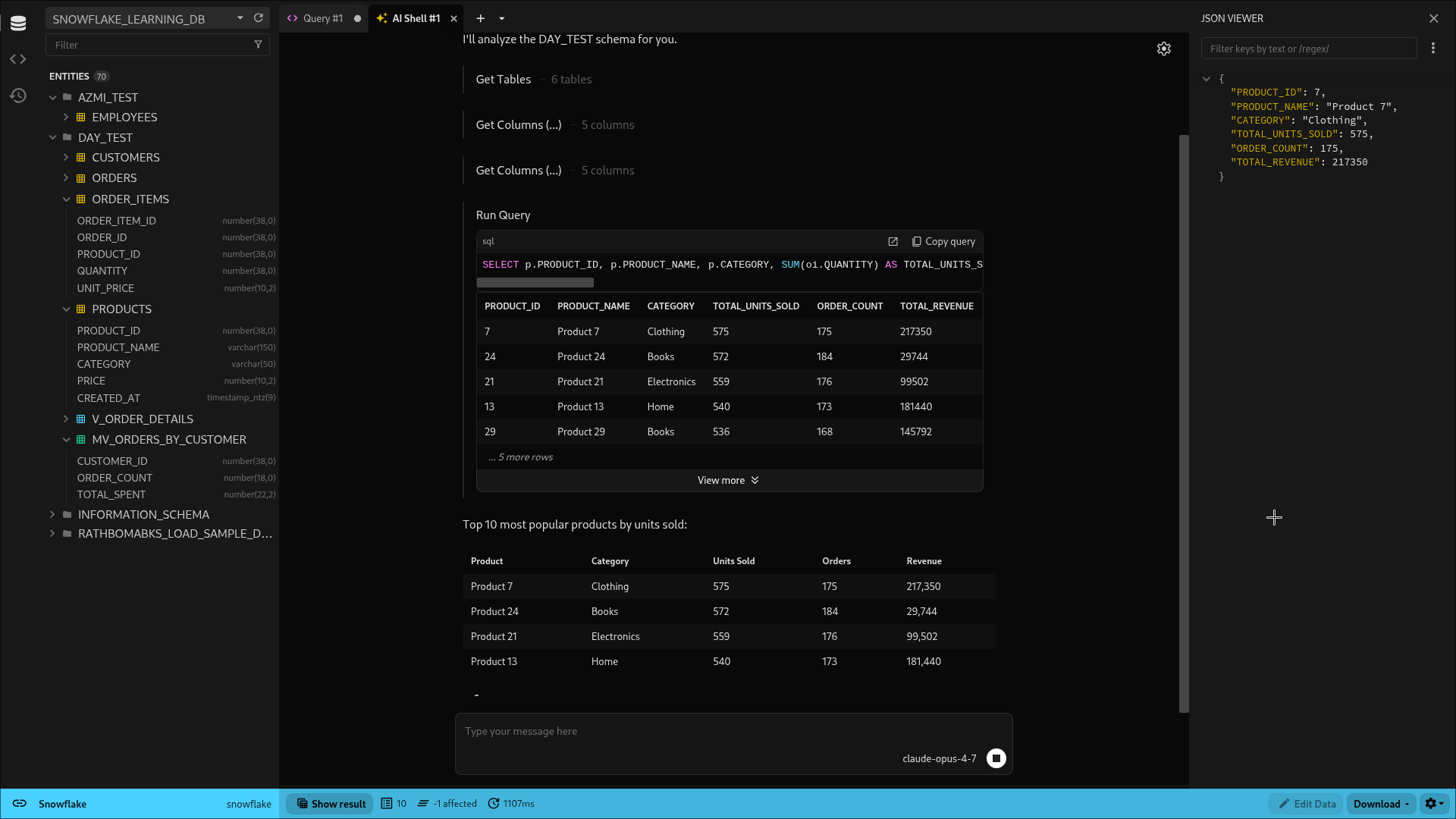
Une fois la requête approuvée, tu obtiens le jeu de résultats avec un résumé en langage courant en dessous. C’est là que l’IA fait vraiment la différence, au-delà d’écrire du SQL à ta place : c’est aussi pratique pour vérifier d’un coup d’œil si les chiffres tiennent la route avant de les copier dans un rapport ou de les transmettre à quelqu’un.
Étape 5 : affine avec des questions de suivi
Si le premier résultat n’est pas tout à fait juste, ne recommence pas de zéro. Continue la conversation :
« Tu peux exclure les commandes annulées ? »
« Regroupe plutôt par mois »
« Ça a l’air bizarre, est-ce qu’on compte quelque chose en double à cause de la jointure ? »
Comme l’AI Shell garde ton schéma et l’historique des requêtes en contexte, les relances ne coûtent pas grand-chose. Tu ne réexpliques pas tes tables à chaque fois, tu affines une requête qu’il a déjà sous les yeux. Tu peux aussi modifier le SQL généré à la main si c’est plus rapide : rien ne t’empêche de le traiter comme un point de départ plutôt qu’une réponse définitive.
Étape 6 : utilise-le sur des requêtes que tu as déjà écrites
Le même onglet AI Shell fonctionne sur ton propre SQL, pas seulement sur les requêtes qu’il génère. Colle un truc tordu dont tu as hérité, une jointure sur cinq tables sans aucun commentaire, et demande-lui d’expliquer ce que fait la requête ou où ajouter un index pour l’accélérer. C’est franchement l’un des usages les plus sous-estimés de l’IA dans un client de base de données : comprendre du vieux SQL prend souvent plus de temps qu’en écrire du nouveau.
Deux choses essentielles. D’abord, la connectivité… Ensuite : l’IA. La fonctionnalité IA compile l’anglais en SQL.
La règle qui compte plus que toutes les autres
N’exécute jamais du SQL généré par IA sur une base de données à laquelle tu tiens sans l’avoir lu d’abord, surtout s’il contient UPDATE, DELETE ou DROP. L’AI Shell demande la permission par défaut précisément parce que « a l’air correct » et « est correct » ne sont pas la même chose, et l’outil n’a aucune idée si « supprime les comptes de test » désigne les trois auxquels tu penses ou toutes les lignes où email LIKE '%test%'. Traite-le comme un ingénieur junior très rapide et très cultivé : de bons premiers jets, qui méritent toujours un second regard avant de les livrer, et encore plus avant de les lancer en production.
Essaie par toi-même
Tu peux essayer l’AI Shell gratuitement pendant 14 jours, sans inscription ni carte bancaire, et sans frais d’utilisation en plus de ce que facture ton fournisseur de modèle.
Télécharger Beekeeper Studio gratuitement
Tu veux d’abord plus de détails sur l’installation et la configuration ? La page de la fonctionnalité SQL AI Shell et la documentation complète couvrent le reste. Et si tu compares encore les outils, notre tour d’horizon des apps et services SQL avec IA est une bonne prochaine étape.
 Beekeeper Studio est une interface de base de données gratuite & open source
Le meilleur outil de requêtes & éditeur SQL que j’aie jamais utilisé. Il m’offre tout ce dont j’ai besoin pour gérer ma base de données. - ⭐⭐⭐⭐⭐ Mit
Beekeeper Studio est rapide, intuitif et facile à utiliser. Beekeeper prend en charge plein de bases de données et fonctionne parfaitement sous Windows, Mac et Linux.
Ce que les utilisateurs disent de Beekeeper Studio
« Beekeeper Studio a complètement remplacé mon ancien workflow SQL. C’est rapide, intuitif, et ça rend le travail sur les bases de données à nouveau agréable. »
« J’ai essayé beaucoup d’interfaces de base de données, mais Beekeeper trouve l’équilibre parfait entre fonctionnalités et simplicité. Ça marche, tout simplement. »