
Jedes Allzweck-LLM schreibt dir bereitwillig ein SELECT-Statement. Was es nicht weiß: dass deine Tabelle users eigentlich accounts heißt, dass status ein als Integer gespeichertes Enum ist und dass deleted_at IS NOT NULL bedeutet, dass die Zeile soft-deleted ist – nicht, dass sie nicht existiert. Am Ende kopierst du CREATE TABLE-Statements in ein Chatfenster, was schnell nervt und veraltet, sobald sich dein Schema ändert.
Die Lösung: Gib dem Modell direkten Zugriff auf dein Schema, damit es solche Dinge selbst nachschlagen kann, statt dass du sie jedes Mal erklärst. Dieser Leitfaden zeigt den Workflow von Anfang bis Ende: verbinden, eine Frage in normaler Sprache stellen, das Ergebnis prüfen und mit KI eine bereits geschriebene Abfrage erklären oder aufräumen. Als konkretes Beispiel nutzen wir die AI Shell von Beekeeper Studio, weil wir dieses Tool am besten kennen – der zugrunde liegende Workflow (schema-bewusstes Prompting, Prüfen vor dem Ausführen) funktioniert aber mit jedem Tool.
Wenn du dir zuerst einen breiteren Vergleich der KI-SQL-Tools auf dem Markt ansehen willst, lohnt sich ein Blick in unseren Überblick über SQL-KI-Apps und -Dienste.
Was du brauchst
- Eine Datenbank, mit der du dich verbindest (Postgres, MySQL, SQLite, SQL Server, egal was)
- Beekeeper Studio. Schema-bewusste KI ist nicht in der kostenlosen Community Edition enthalten, aber du kannst sie 14 Tage kostenlos testen – ohne Anmeldung oder Kreditkarte
- Einen API-Key von einem LLM-Anbieter, den du schon nutzt – Claude und OpenAI funktionieren beide – oder ein lokales Ollama-Modell, wenn du alles auf deinem eigenen Rechner behalten willst
Es gibt keinen Aufschlag auf API-Kosten und du brauchst kein Beekeeper-Konto. Du bezahlst deinen Modellanbieter direkt, genau wie wenn du seine API aus einem Skript aufrufst.
Schritt 1: Verbinde dich mit deiner Datenbank und öffne eine AI Shell statt eines Abfrage-Tabs
Verbinde dich wie gewohnt. Der einzige Unterschied zu deinem üblichen Workflow: Wo du sonst einen neuen Abfrage-Tab öffnest, kannst du über ein Dropdown stattdessen einen AI Shell-Tab öffnen.
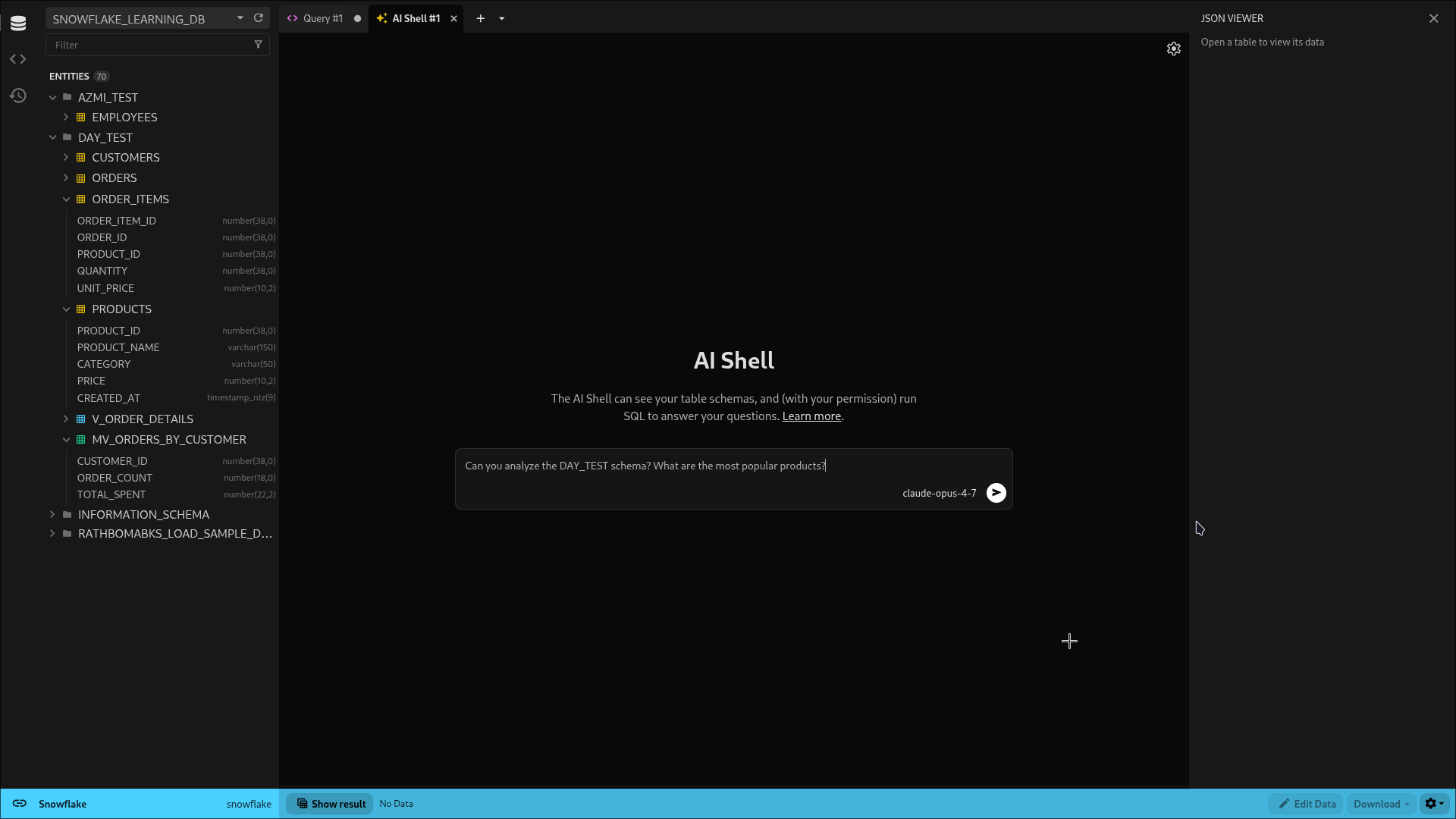
Beim ersten Mal wählst du einen Anbieter und gibst deinen API-Key ein. Danach wird er für die Verbindung gespeichert, du musst ihn also nicht in jeder Sitzung neu eingeben.
Schritt 2: Stell deine Frage in normaler Sprache
Schreib, was du eigentlich wissen willst – keine Beschreibung deiner Tabellen. Die AI Shell hat bereits Zugriff auf dein Schema, du musst es also nicht vorab erklären.
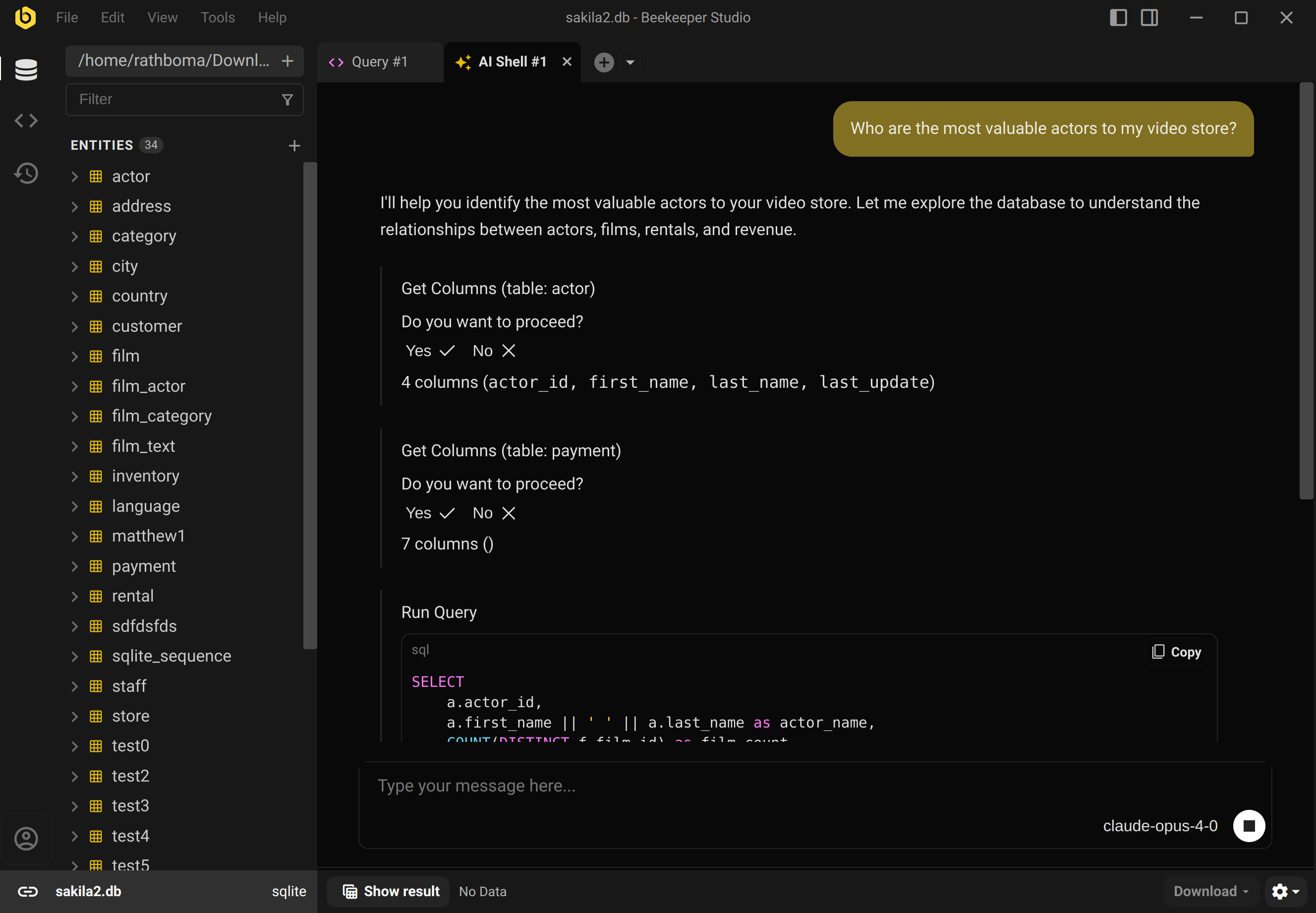
Achte darauf, was dann passiert: Sie schaut sich die Spalten der Tabellen an, die sie für relevant hält, bevor sie auch nur eine Zeile SQL schreibt. Genau darauf kommt es an. Sie rät Spaltennamen nicht anhand des Tabellennamens, sie prüft nach.
Schritt 3: Prüfen, bevor du zustimmst
Standardmäßig fragt die AI Shell nach, bevor sie etwas tut: bevor sie das Schema einer Tabelle liest und bevor sie eine Abfrage ausführt. Jeder Schritt hat seine eigene Yes / No-Bestätigung, es passiert also nichts, ohne dass du es durchklickst.
Diesen Schritt überspringen viele, sobald sie dem Tool vertrauen – und genau diesen solltest du nicht überspringen. Lies das generierte SQL, bevor du zustimmst, besonders die JOIN-Bedingungen und jede WHERE-Klausel, die Zeilen herausfiltert. Ein Modell, das leicht falsch liegt, wie zwei Tabellen zusammenhängen, liefert trotzdem ein Ergebnis – nur eben das falsche. Und eine plausibel wirkende falsche Zahl ist gefährlicher als ein offensichtlicher Fehler.
Wenn du nicht jeden einzelnen Lesezugriff bestätigen willst, gibt es dafür eine Einstellung: Settings → General → Always allow execution of read-only queries. Damit laufen SELECT-Statements automatisch, aber vor allem, was Daten schreibt, wird weiterhin gefragt. Es lohnt sich, das einzuschalten, sobald du etwas Vertrauen in das Tool für deine eigene Datenbank aufgebaut hast – am ersten Tag würde ich es nicht empfehlen.
Schritt 4: Lies die Antwort, nicht nur die Abfrage
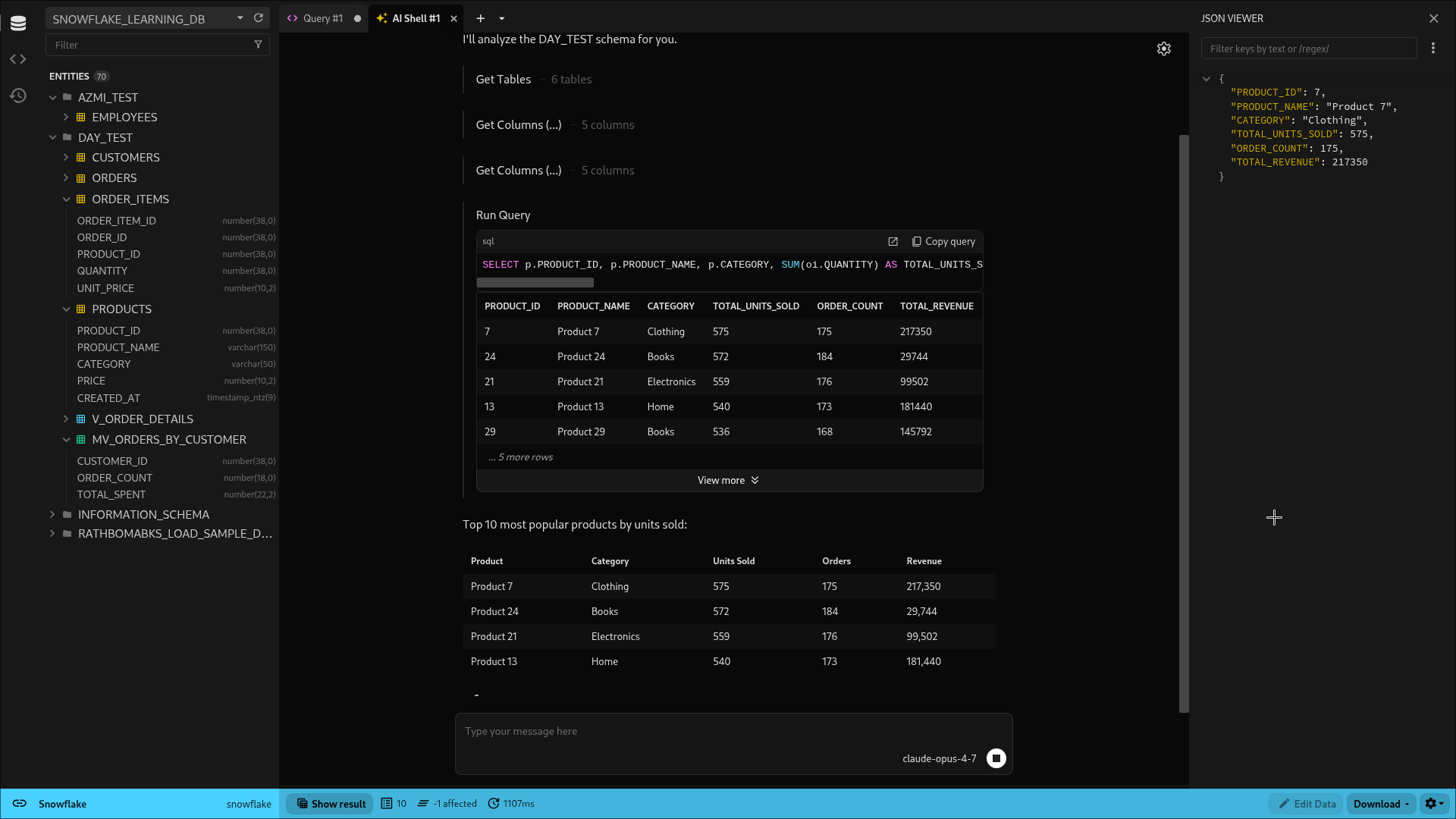
Sobald du die Abfrage freigibst, bekommst du das Ergebnis plus eine Zusammenfassung in normaler Sprache darunter. Hier zeigt KI, dass sie mehr kann, als nur SQL für dich zu schreiben: Sie hilft dir auch, schnell zu prüfen, ob die Zahlen Sinn ergeben, bevor du sie in einen Bericht kopierst oder an jemand anderen weitergibst.
Schritt 5: Verfeinere mit Folgefragen
Wenn das erste Ergebnis nicht ganz passt, fang nicht von vorne an. Red einfach weiter:
„Kannst du stornierte Bestellungen davon ausschließen?“
„Gruppier das stattdessen nach Monat“
„Das sieht komisch aus – zählen wir durch den Join etwas doppelt?“
Weil die AI Shell dein Schema und den Abfrageverlauf im Kontext behält, sind Folgefragen günstig. Du erklärst deine Tabellen nicht jedes Mal neu, sondern verfeinerst eine Abfrage, die sie bereits vor sich hat. Du kannst das generierte SQL auch einfach von Hand bearbeiten, wenn das schneller geht – nichts hindert dich daran, es als Ausgangspunkt statt als fertige Antwort zu behandeln.
Schritt 6: Nutze sie für Abfragen, die du schon geschrieben hast
Derselbe AI Shell Tab funktioniert auch mit deinem eigenen SQL, nicht nur mit generierten Abfragen. Füg etwas Verzwicktes ein, das du geerbt hast – einen Join über fünf Tabellen ohne Kommentare – und lass dir erklären, was die Abfrage macht oder wo ein Index sie beschleunigen würde. Ehrlich gesagt ist das einer der unterschätzteren Einsatzzwecke von KI in einem Datenbank-Client: Altes SQL zu verstehen frisst oft mehr Zeit, als neues zu schreiben.
Zwei entscheidende Dinge. Erstens: Konnektivität… Zweitens: KI. Das KI-Feature kompiliert Englisch zu SQL.
Die eine Regel, die wichtiger ist als alle anderen
Führ KI-generiertes SQL niemals gegen eine Datenbank aus, die dir wichtig ist, ohne es vorher zu lesen – besonders alles mit UPDATE, DELETE oder DROP. Die AI Shell fragt standardmäßig nach Erlaubnis, gerade weil „sieht richtig aus“ und „ist richtig“ nicht dasselbe sind, und das Tool hat keine Ahnung, ob „lösch die Testkonten“ die drei meint, an die du denkst, oder jede Zeile mit email LIKE '%test%'. Behandle sie wie einen sehr schnellen, sehr belesenen Junior-Engineer: gute erste Entwürfe, aber immer ein zweites Paar Augen wert, bevor du sie auslieferst – und erst recht, bevor du sie gegen Production laufen lässt.
Probier es selbst aus
Du kannst die AI Shell 14 Tage kostenlos testen – ohne Anmeldung oder Kreditkarte und ohne zusätzliche Nutzungsgebühren über das hinaus, was dein Modellanbieter berechnet.
Beekeeper Studio kostenlos herunterladen
Du willst vorher mehr über Einrichtung und Konfiguration erfahren? Die Feature-Seite zur SQL AI Shell und die vollständige Doku decken den Rest ab. Und wenn du noch Tools vergleichst, ist unser Überblick über KI-SQL-Apps und -Dienste ein guter nächster Halt.
 Beekeeper Studio ist eine kostenlose & quelloffene Datenbank-GUI
Das beste SQL-Abfrage- & Editor-Tool, das ich je benutzt habe. Es bietet alles, was ich zum Verwalten meiner Datenbank brauche. - ⭐⭐⭐⭐⭐ Mit
Beekeeper Studio ist schnell, intuitiv und einfach zu bedienen. Beekeeper unterstützt jede Menge Datenbanken und läuft hervorragend auf Windows, Mac und Linux.
Was Nutzer über Beekeeper Studio sagen
„Beekeeper Studio hat meinen alten SQL-Workflow komplett ersetzt. Es ist schnell, intuitiv und macht die Arbeit mit Datenbanken wieder angenehm.“
„Ich habe viele Datenbank-GUIs ausprobiert, aber Beekeeper findet die perfekte Balance zwischen Funktionsumfang und Einfachheit. Es funktioniert einfach.“