
Every general-purpose LLM will happily write you a SELECT statement. What they’re bad at is knowing that your users table is actually called accounts, that status is an enum stored as an integer, and that deleted_at IS NOT NULL means the row is soft-deleted, not that it doesn’t exist. You end up pasting CREATE TABLE statements into a chat window, which gets old fast and goes stale the moment your schema changes.
The fix is giving the model direct access to your schema so it can look this stuff up itself instead of you explaining it every time. This guide walks through that workflow end to end: connecting, asking a question in plain English, reviewing what comes back, and using AI to explain or clean up a query you already wrote. We’ll use Beekeeper Studio’s AI Shell to show it concretely, since that’s the tool we know best, but the underlying workflow (schema-aware prompting, reviewing before executing) applies whatever tool you’re using.
If you want a broader comparison of the AI SQL tools on the market first, we’ve got a roundup of SQL AI apps and services worth a look.
What you need
- A database to connect to (Postgres, MySQL, SQLite, SQL Server, whatever)
- Beekeeper Studio. Schema-aware AI isn’t in the free Community edition, but you can try it free for 14 days, no signup or credit card required
- An API key from an LLM provider you already use, Claude and OpenAI both work, or a local Ollama model if you’d rather keep everything on your own machine
There’s no markup on API costs and no Beekeeper account required. You pay your model provider directly, same as if you were calling their API from a script.
Step 1: Connect to your database, then open an AI Shell instead of a query tab
Connect the way you normally would. The only difference from your usual workflow is that where you’d open a new query tab, you’ll see a dropdown letting you open an AI Shell tab instead.
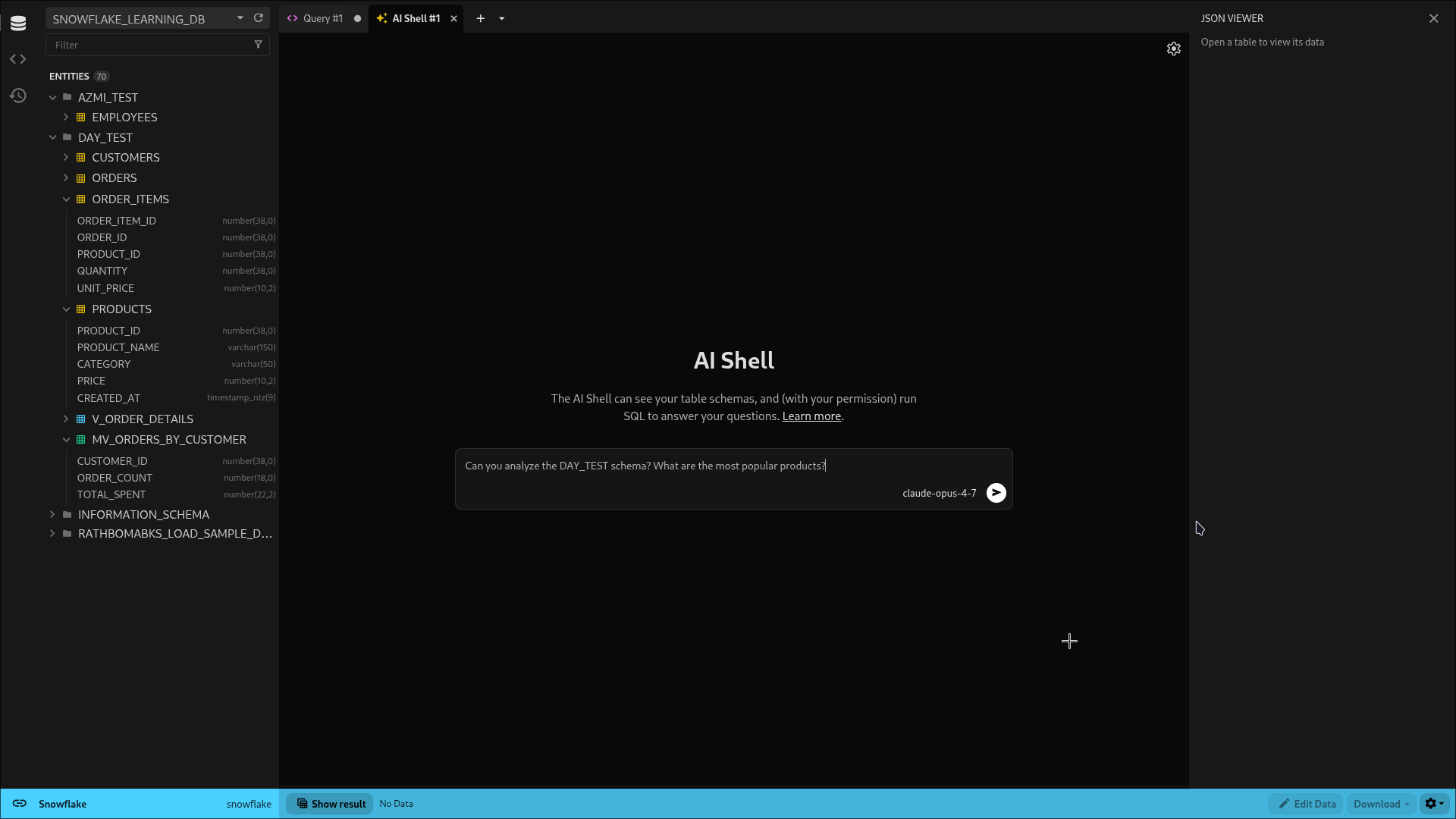
The first time you do this you’ll pick a provider and drop in your API key. After that it’s remembered for the connection, so you’re not re-entering it every session.
Step 2: Ask your question in plain English
Type what you actually want to know, not a description of your tables. The AI Shell already has access to your schema, so there’s no need to explain it upfront.
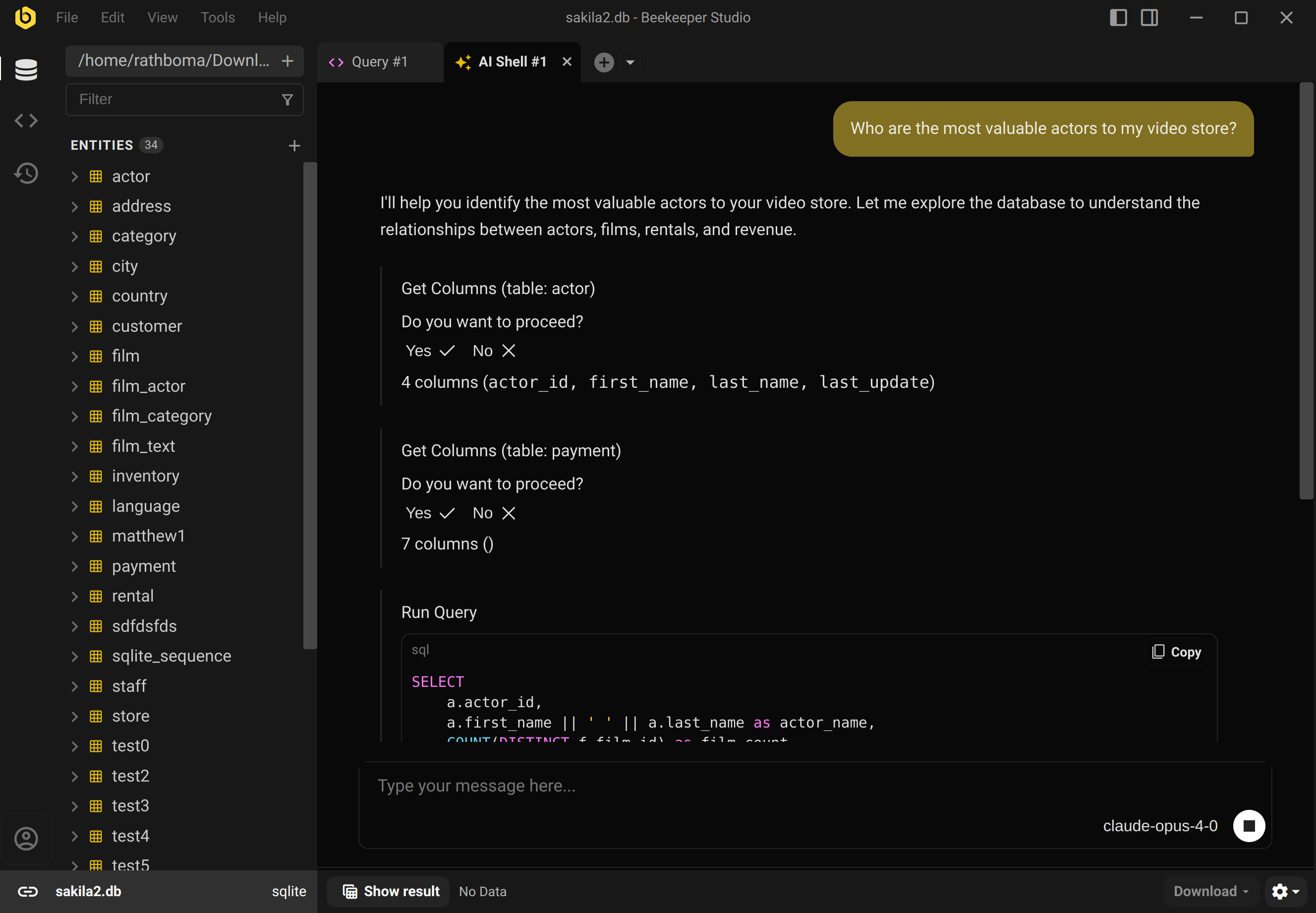
Watch what happens next: it looks up the columns on the tables it thinks are relevant before it writes a single line of SQL. That’s the part that actually matters here. It’s not guessing at column names from a table name, it’s checking.
Step 3: Review before you approve
By default, the AI Shell asks before it does anything: before it reads a table’s schema, and before it runs a query. Each step comes with its own Yes / No confirmation, so nothing happens without you clicking through it.
This is the step people skip once they trust the tool, and it’s the step you shouldn’t skip. Read the generated SQL before you hit yes, especially the JOIN conditions and any WHERE clause filtering rows out. A model that’s slightly wrong about how two tables relate will still return a result, it’ll just be the wrong one, and a plausible-looking wrong number is more dangerous than an obvious error.
If you’d rather not confirm every single read, there’s a setting for that: Settings → General → Always allow execution of read-only queries. That auto-runs SELECT statements but still asks before anything that writes data. Worth turning on once you’ve built up some trust in the tool for your own database; not something I’d recommend on day one.
Step 4: Read the answer, not just the query
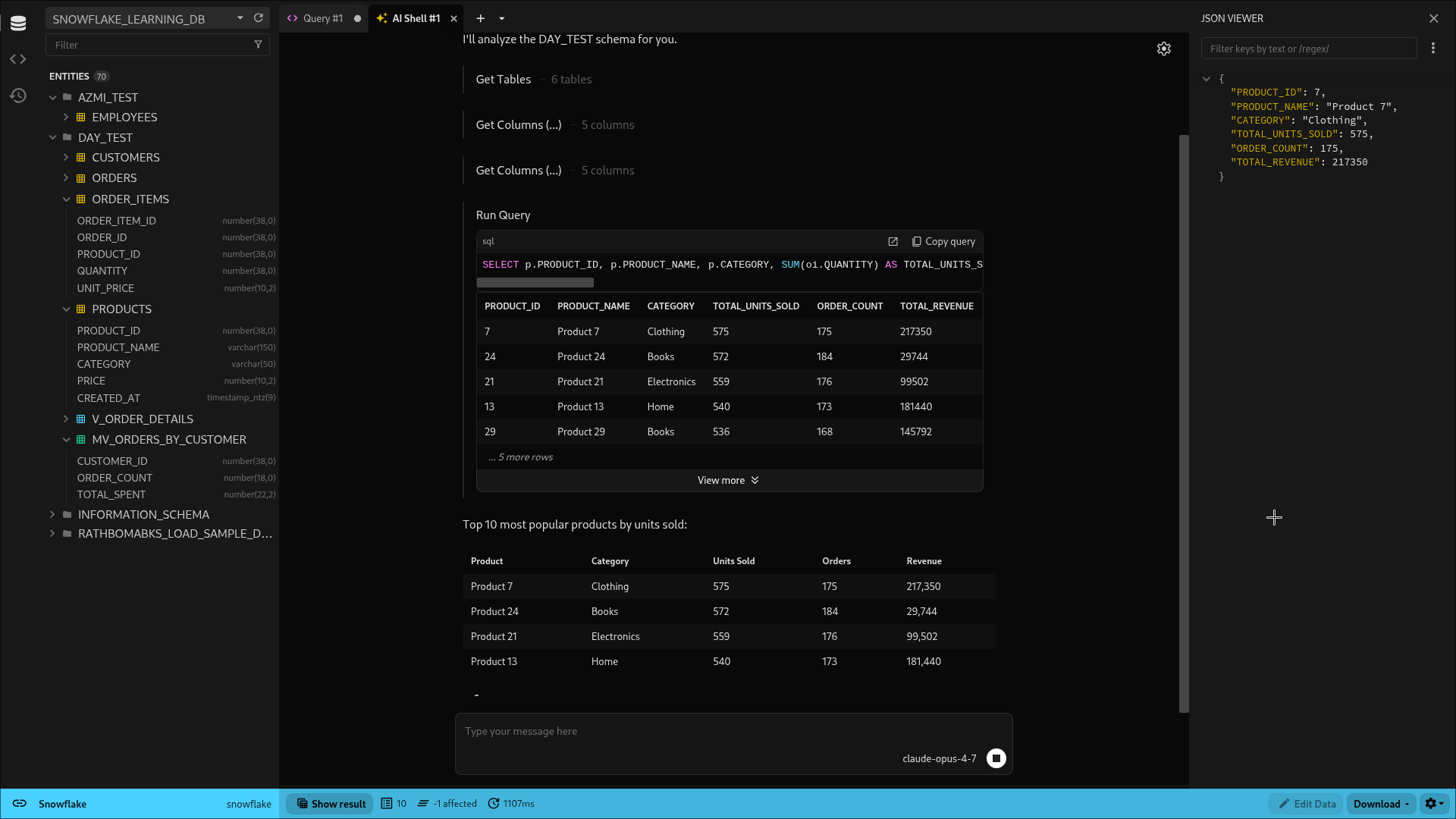
Once you approve the query, you get the result set plus a plain-English summary underneath it. This is where AI earns its keep over just writing SQL for you: it’s also useful for eyeballing whether the numbers make sense before you copy them into a report or hand them to someone else.
Step 5: Refine it with follow-up questions
If the first result isn’t quite right, don’t start over. Keep talking:
“Can you exclude cancelled orders from that?”
“Group that by month instead”
“That looks off, are we double-counting anything from the join?”
Because the AI Shell keeps your schema and query history in context, follow-ups are cheap. You’re not re-explaining your tables each time, you’re refining a query it already has in front of it. You can also just edit the generated SQL by hand if that’s faster, nothing stops you from treating it as a starting point rather than a final answer.
Step 6: Use it on queries you already wrote
The same AI Shell tab works on your own SQL, not just queries it generates. Paste in something gnarly you inherited, a five-table join with no comments, and ask it to explain what the query is doing or where you’d add an index to speed it up. This is honestly one of the more underrated uses of AI in a database client: understanding old SQL is often more of a time sink than writing new SQL.
Two key things. First, connectivity… Second: AI. The AI feature compiles English into SQL. - George Wright
The one rule that matters more than the rest
Never run AI-generated SQL against a database you care about without reading it first, especially anything with UPDATE, DELETE, or DROP in it. The AI Shell asks for permission by default precisely because “looks right” and “is right” aren’t the same thing, and the tool has no idea whether “delete the test accounts” means the three you’re thinking of or every row where email LIKE '%test%'. Treat it like a very fast, very well-read junior engineer: good first drafts, always worth a second pair of eyes before you ship it, more so before you run it against production.
Try it yourself
You can try the AI Shell free for 14 days, no signup or credit card required, no extra usage fees beyond whatever your model provider charges you.
Download Beekeeper Studio Free
Want more detail on setup and configuration first? The SQL AI Shell feature page and the full docs cover the rest. And if you’re still comparing tools, our roundup of AI SQL apps and services is a reasonable next stop.
 Beekeeper Studio Is A Free & Open Source Database GUI
Best SQL query & editor tool I have ever used. It provides everything I need to manage my database. - ⭐⭐⭐⭐⭐ Mit
Beekeeper Studio is fast, intuitive, and easy to use. Beekeeper supports loads of databases, and works great on Windows, Mac and Linux.
What Users Say About Beekeeper Studio
"Beekeeper Studio completely replaced my old SQL workflow. It's fast, intuitive, and makes database work enjoyable again."
"I've tried many database GUIs, but Beekeeper strikes the perfect balance between features and simplicity. It just works."