
Introduction
Short version: use \l or \list to list all databases in psql. However, this will only display the most basic information about each database. If you need more detail about each database, keep reading.
Step 1: Make Sure You Have Access to ‘psql’
First, ensure that you have access to the PostgreSQL command line utility, psql. To start psql, open your terminal and enter:
psql -U username -d dbname
Replace username with your PostgreSQL role username and dbname with any database to which the user has access. If you’re accessing the default PostgreSQL database for initial setup, you can use postgres as the dbname.
Step 2: Listing Databases
Once inside the psql interface, listing all databases is straightforward. Use the following command:
\l
or
\list
These commands display a list of all databases along with their owners, encoding, collation configurations, and access privileges. Here is an example of what the output might look like:
                                 List of databases
   Name    |  Owner   | Encoding |   Collate   |    Ctype    |   Access privileges
-----------+----------+----------+-------------+-------------+-----------------------
 postgres  | postgres | UTF8     | en_US.UTF-8 | en_US.UTF-8 |
 template0 | postgres | UTF8     | en_US.UTF-8 | en_US.UTF-8 | =c/postgres          +
           |          |          |             |             | postgres=CTc/postgres
 template1 | postgres | UTF8     | en_US.UTF-8 | en_US.UTF-8 | =c/postgres          +
           |          |          |             |             | postgres=CTc/postgres
 mydb      | dbuser   | UTF8     | en_US.UTF-8 | en_US.UTF-8 |
Understanding the Output
- Name: The name of the database.
- Owner: The role that owns the database.
- Encoding: Character encoding scheme used by the database.
- Collate: Collation order (i.e., how strings are sorted).
- Ctype: Character classification (e.g., letter, digit).
- Access privileges: Custom access privileges if any.
Add a ‘+’ To Get More Information
Psql uses + in conjunction with other commands to provide an expanded display of the command’s output. It is particularly useful when you want more detailed information or when the default output is too compact or clipped.
For listing tables run \l+ to see extra information about each database
This command displays additional details about each database, such as:
- Size: The physical disk space used by the database.
- Description: Any comments that have been added to the database.
Listing Roles and Permissions with ‘\du’
The \du command displays the list of roles in the PostgreSQL database along with their associated privileges.
The output will include columns like:
- Role name
- Attributes: Lists global attributes like login permissions, superuser status, role inheritances, etc.
- Member of: Other roles this role is a part of.
Listing Tablespace Information with ‘\db’
The \db command provides information about tablespaces, which are storage locations where PostgreSQL databases store their files.
This will display details about each tablespace, including:
- Name: The name of the tablespace.
- Owner: The PostgreSQL role that owns the tablespace.
- Location: The directory path of the tablespace on the disk.
- Size: The size of the tablespace.
Retrieving Detailed Database Information from ‘pg_catalog.pg_database’
PostgreSQL stores metadata about all databases in the system catalog pg_catalog.pg_database. Querying this catalog can yield comprehensive details about databases.
SQL Query Example
To retrieve detailed information about databases:
SELECT datname AS database_name,
       pg_size_pretty(pg_database_size(datname)) AS size,
       datallowconn AS allow_connections,
       datconnlimit AS connection_limit,
       encoding,
       datcollate,
       datctype
FROM pg_catalog.pg_database;
Understanding The Output
- database_name: Name of the database.
- size: Human-readable format of the database size.
- allow_connections: Indicates if the database allows connections (true or false).
- connection_limit: The maximum number of concurrent connections allowed (-1 means no limit).
- encoding: Numeric encoding ID of the database.
- datcollate: Collation setting of the database.
- datctype: Character type setting of the database.
This query provides insights into the database’s configurations and settings.
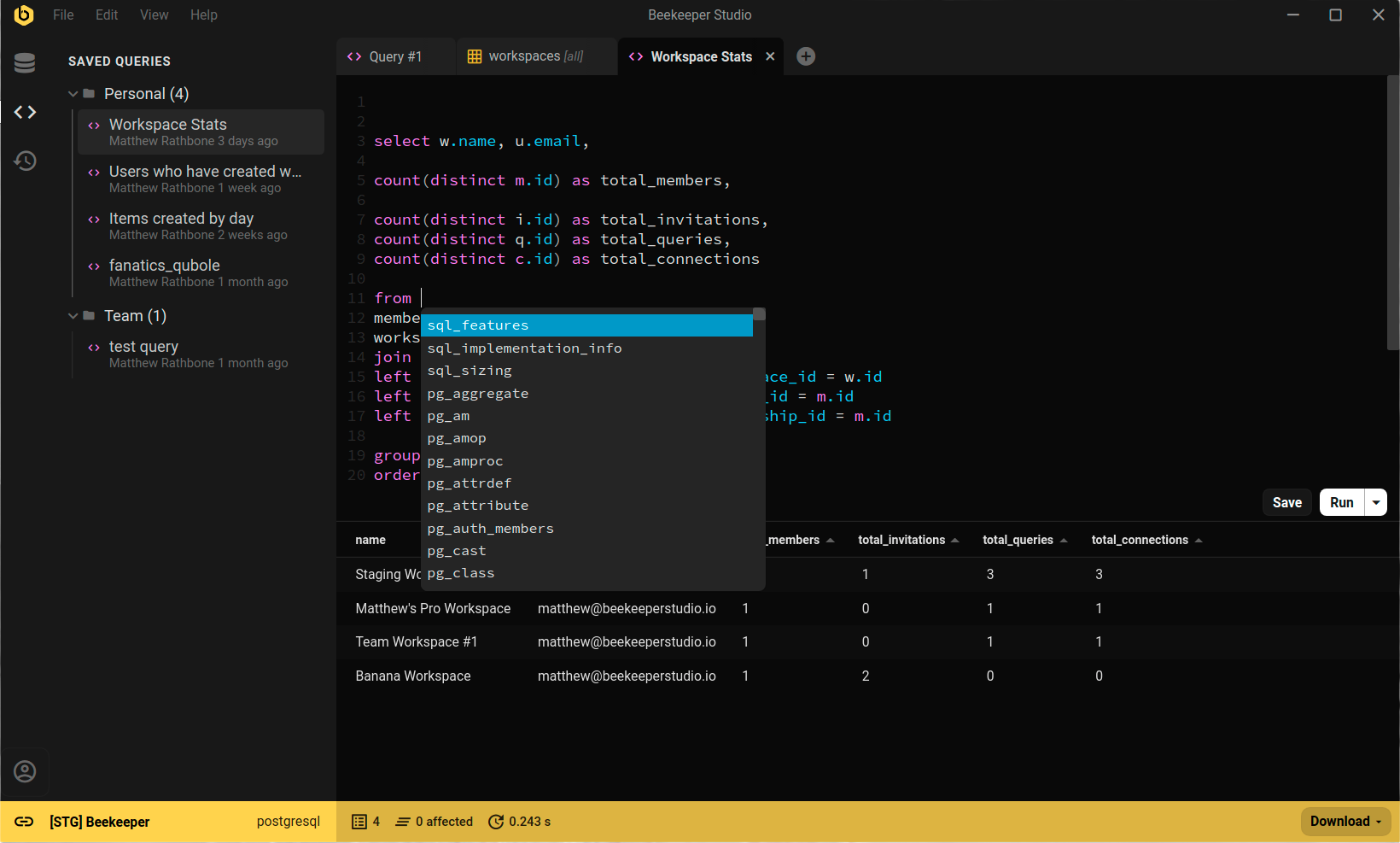
Just Point And Click With Beekeeper Studio
Beekeeper Studio lists all databases in a dropdown at the top of the interface, switch between databases at any time.
Summary
In summary, list all the databases in psql using \l. To get more detailed information, use the other commands listed in this tutorial.
 Beekeeper Studio Is A Free & Open Source Database GUI
Best SQL query & editor tool I have ever used. It provides everything I need to manage my database. - ⭐⭐⭐⭐⭐ Mit
Beekeeper Studio is fast, intuitive, and easy to use. Beekeeper supports loads of databases, and works great on Windows, Mac and Linux.
What Users Say About Beekeeper Studio
"Beekeeper Studio completely replaced my old SQL workflow. It's fast, intuitive, and makes database work enjoyable again."
"I've tried many database GUIs, but Beekeeper strikes the perfect balance between features and simplicity. It just works."