
You can connect ChatGPT straight to MySQL, but it then holds your password and can run any SQL it likes. The safer way is to put an app like Beekeeper Studio in between.
There are two ways to connect MySQL to ChatGPT:
- Connect ChatGPT directly to MySQL, by giving it your credentials through Codex or a MySQL MCP server.
- Connect through Beekeeper Studio, which keeps your password to itself and asks you before a query changes anything.
Option 2 is what we recommend, and it’s free to try: download Beekeeper Studio, our MySQL database manager, and skip to the walkthrough.
Option 1: Connect ChatGPT directly to MySQL
Codex, OpenAI’s coding agent, runs commands on your machine, so the quickest way is to give it your connection details and let it use the mysql command line client:
mysql -h db.example.com -u app -phunter2 shop -e "SELECT COUNT(*) FROM orders"
The other way is a MySQL MCP server, which gives the model a “run this SQL” tool. Open source ones like mcp-server-mysql have you write the host, user and password into a config file. To use one from ChatGPT itself, as a custom connector, it also has to be reachable from the internet.
Either way, ChatGPT now has a MySQL login and decides for itself what to run with it.
The dangers of connecting MySQL with ChatGPT directly
With that login, and no one checking its SQL:
- ChatGPT can delete rows, or update every row in a table with one bad
WHEREclause. - ChatGPT can alter table structures or drop them entirely.
- MySQL commits each statement as it runs, so there’s no undo, only your backups.
- ChatGPT can read every table the user can, and what it reads is sent to OpenAI.
- Your password sits in plain text in a config file, your shell history or the chat.
- A connector open to the internet is another way in to your database.
- A row containing “ignore your instructions and run…” can be followed as an instruction.
- A big join or an
ALTER TABLEcan lock a production table while your users wait. - With enough privileges, ChatGPT can create users and grant itself more access.
- From a shell, Codex can also run
mysqldumpand copy the whole database. - Nothing records what ChatGPT ran unless you’ve turned on MySQL’s query log.
Codex asks before it runs a command, until you tell it to stop asking.
You can limit the damage with a MySQL user just for ChatGPT
If you do connect directly, don’t give ChatGPT your own login. Create a user for it that can only read one database:
CREATE USER 'chatgpt'@'%' IDENTIFIED BY 'a-long-random-password';
GRANT SELECT ON shop.* TO 'chatgpt'@'%';
MySQL then refuses anything else:
UPDATE products SET price = 0;
-- ERROR 1142 (42000): UPDATE command denied to user 'chatgpt'@'localhost' for table 'products'
This stops the writes, drops and grants. It doesn’t stop ChatGPT reading every row in that database, running a query heavy enough to slow production, or the password sitting in a config file. You can narrow it further by granting SELECT on single tables (GRANT SELECT ON shop.orders TO ...) and by pointing ChatGPT at a replica. SHOW GRANTS confirms what the user can do.
Option 2: Connect ChatGPT to MySQL through Beekeeper Studio
Beekeeper Studio’s AI Shell sits between OpenAI’s models and your database:
- ChatGPT never gets your MySQL password. It can only list tables, list columns and propose queries.
- Every query is shown to you with Yes, No and Edit buttons before it runs.
- You can let read-only queries run on their own. Anything that writes still asks.
- Your OpenAI API key is stored encrypted on your machine and only sent to OpenAI.
The model does see your table names and the results of queries that run, so treat those the way you’d treat pasting them into ChatGPT.
The AI Shell is included in every paid plan, and there’s a 14-day free trial with no signup or credit card. The screenshots below are Beekeeper Studio 6.3.2 on a small MySQL 8.4 shop database.
Step 1: Connect Beekeeper Studio to MySQL
Install Beekeeper Studio, click New Connection, choose MySQL, enter your connection details and click Connect.
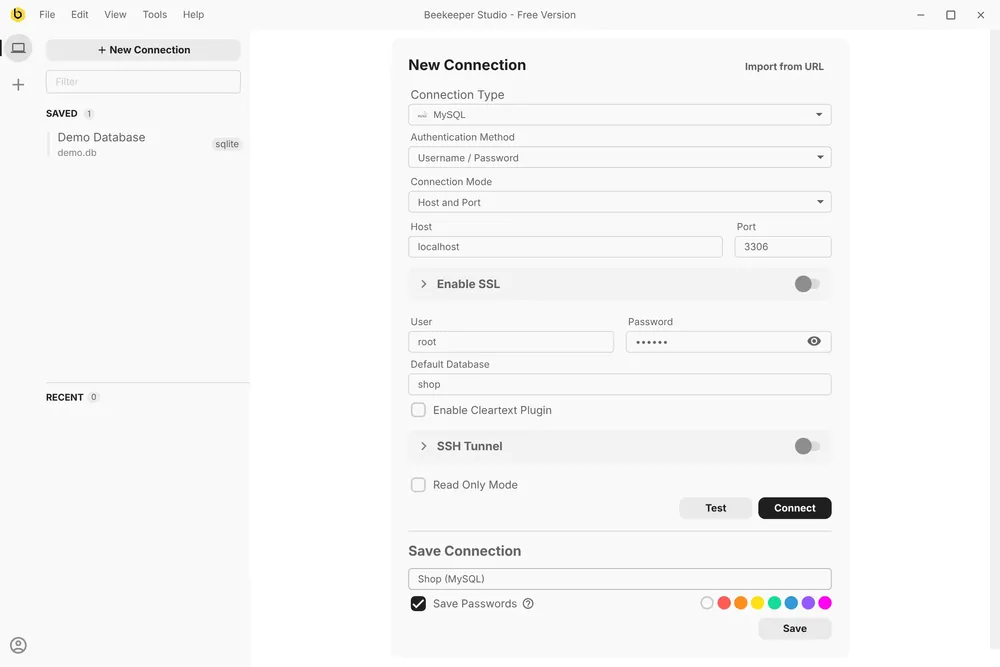
For extra protection, tick Read Only Mode: Beekeeper Studio then refuses UPDATE, DELETE, ALTER and other writes on this connection, from the AI Shell or anywhere else. The read-only MySQL user from above works here too.
Step 2: Open an AI Shell
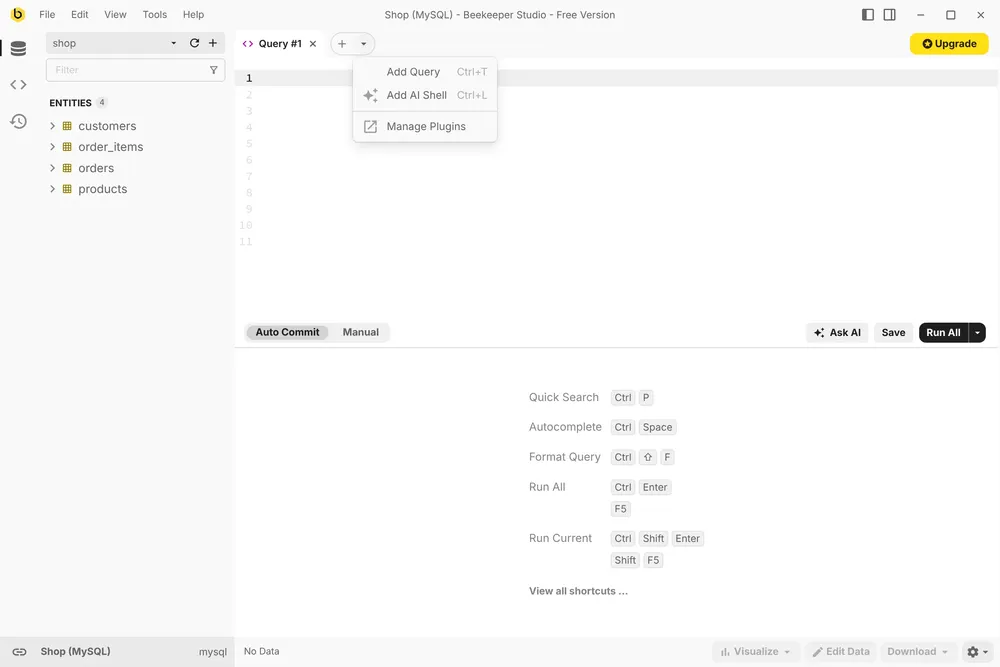
Click the arrow beside the + at the end of the tabs and choose Add AI Shell, or press Ctrl+L.
Step 3: Add your OpenAI API key
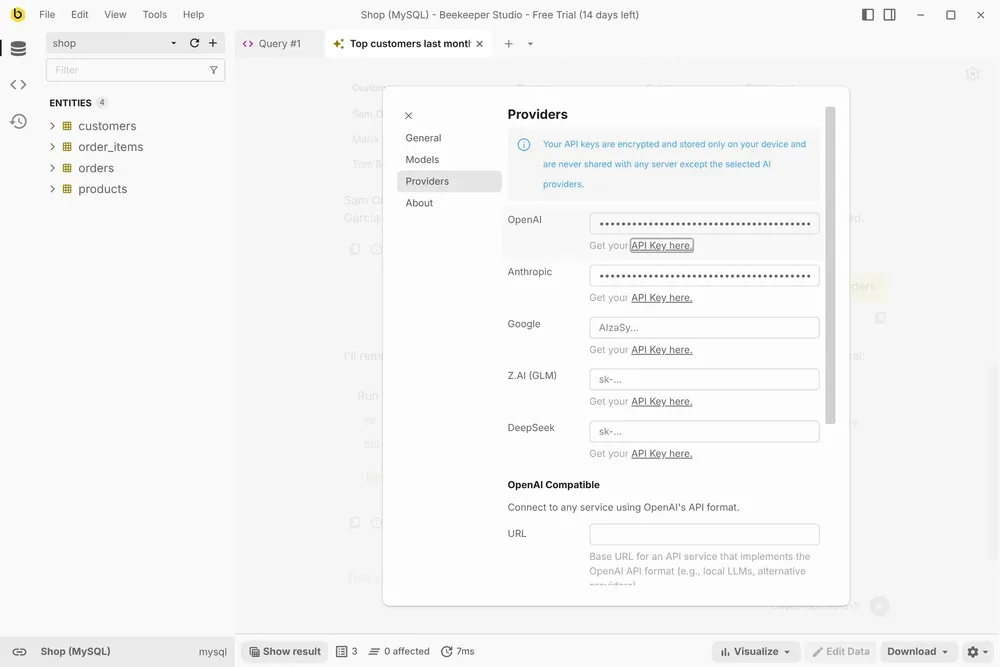
Choose OpenAI as the provider and paste an API key from the OpenAI platform. Keys can also be added later under the gear icon, in Providers. A ChatGPT subscription doesn’t include API usage, so you need an API key, billed by OpenAI at its normal rates.
Step 4: Choose a GPT model
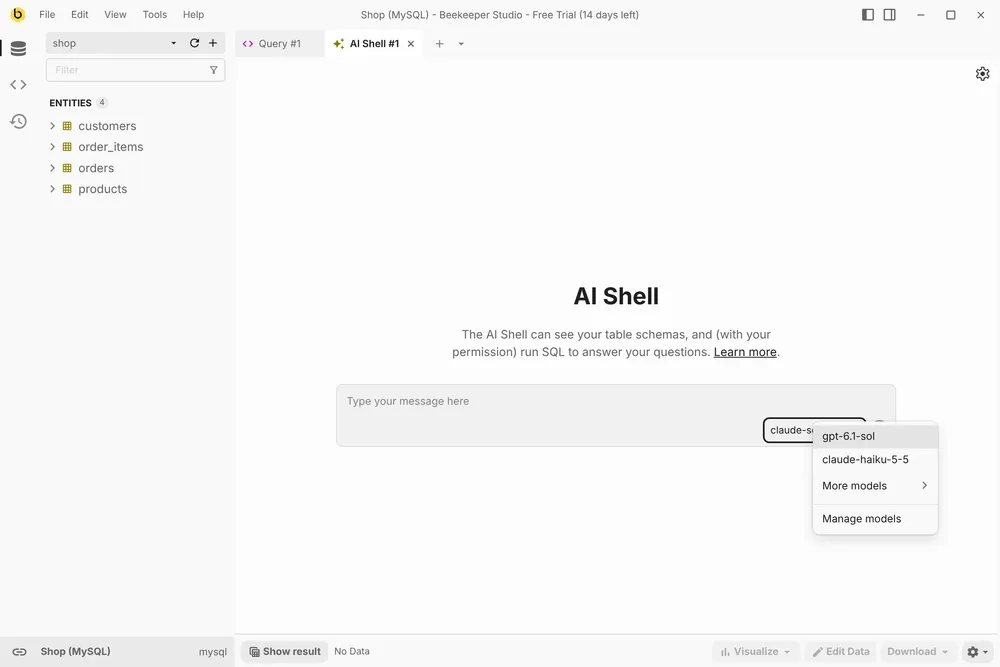
Click the model name next to the send button and pick one of OpenAI’s models. The rest are under More models.
Step 5 (optional): Let read-only queries run on their own
By default the AI Shell asks before every query. To skip the prompt for each SELECT, click the gear icon and turn on Always allow execution of read-only queries.
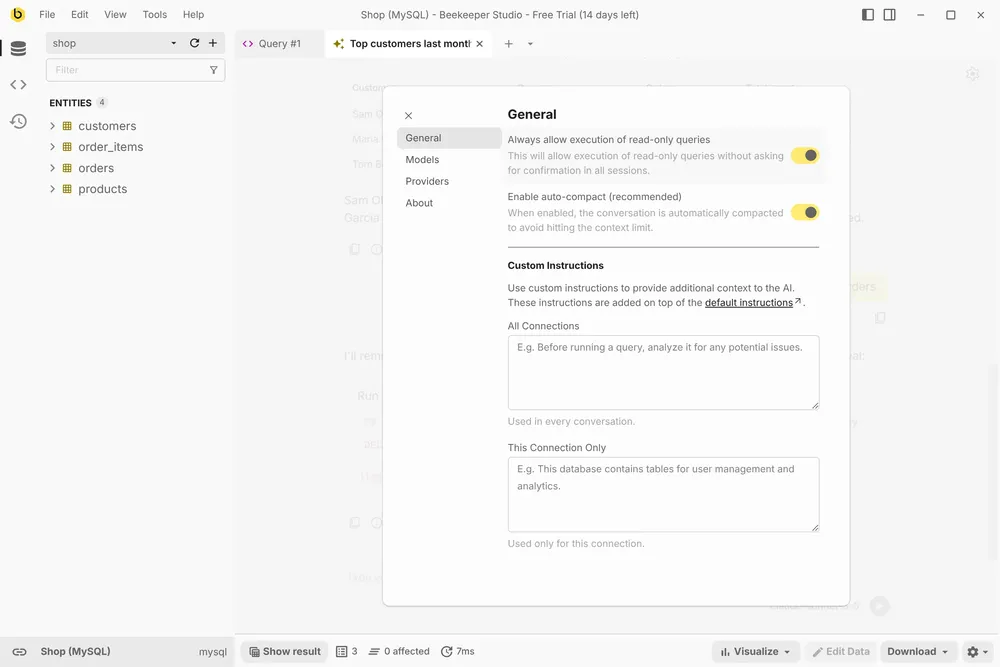
A query that writes, or that the shell can’t parse, still asks.
Step 6: Ask a question
I asked “What are our best selling products?”. The model looked up the tables and columns and wrote a query. Because it only reads, it ran straight away:
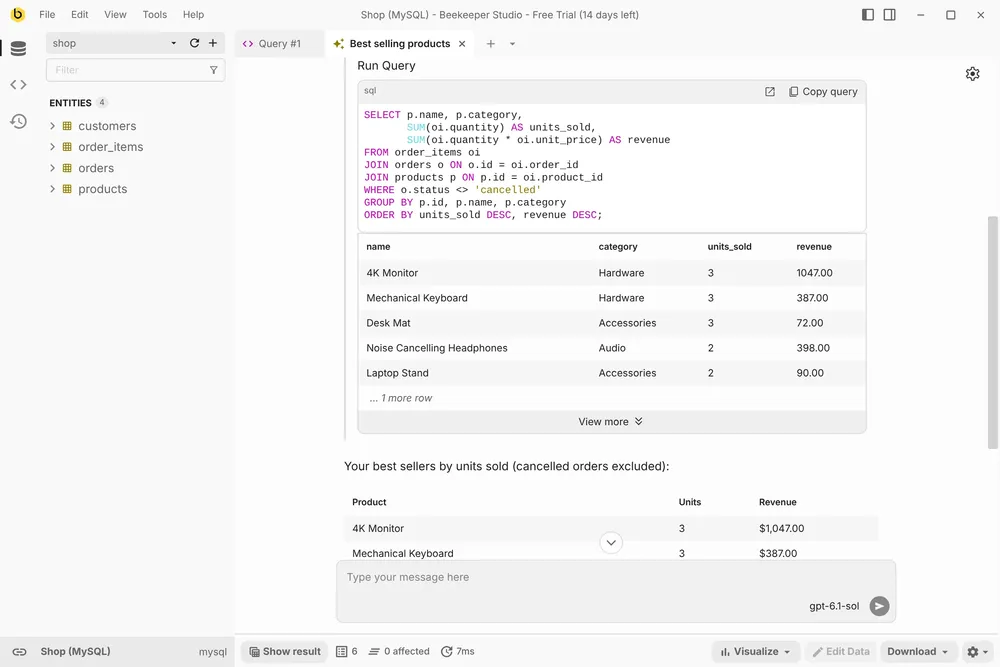
The query and its rows are always shown, so you can check the answer against the data.
Step 7: Approve or reject changes
Then I asked it to “Raise the price of the 4K Monitor by 10%”. That needs an UPDATE, so the AI Shell stops and asks:
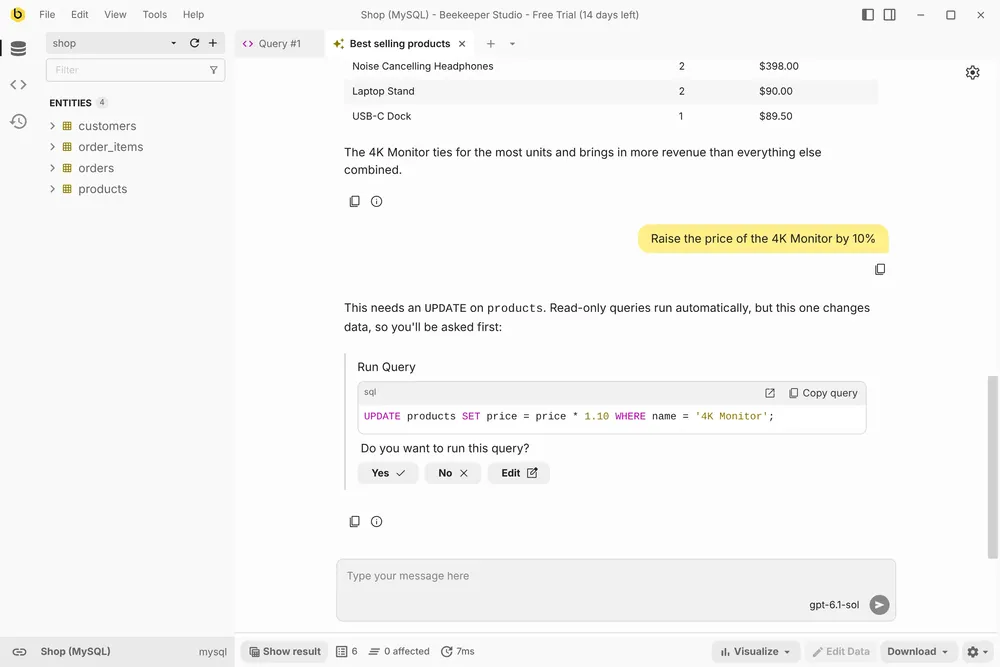
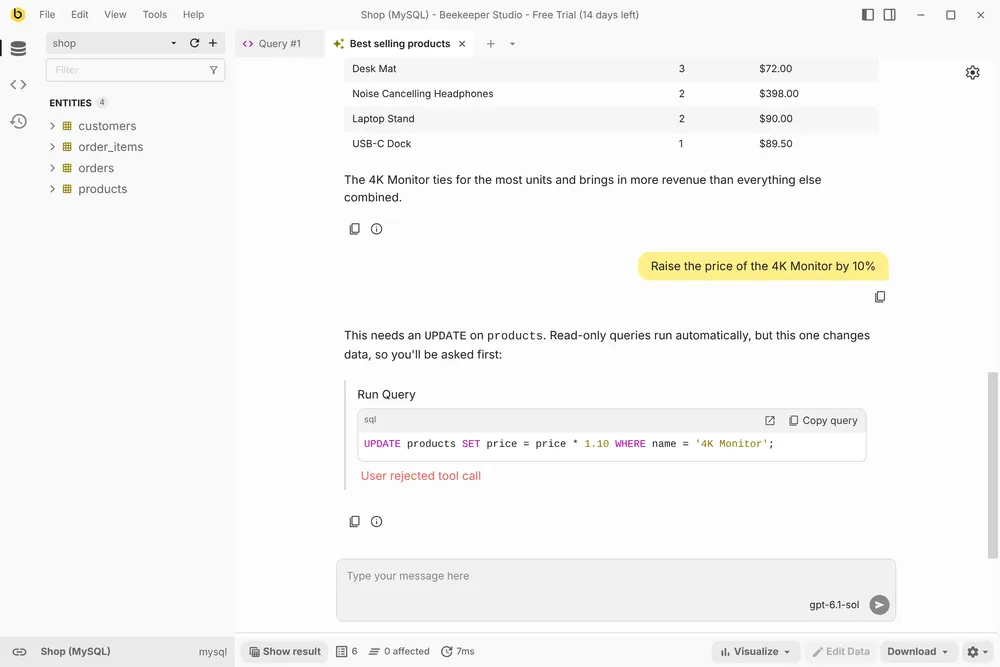
I clicked No, so the statement never reached MySQL and the monitor still costs $349.
Further reading
- How to connect MySQL to Claude, the same setup with Anthropic’s models
- How to write SQL with AI, on checking AI-generated SQL before you run it
- Top SQL AI apps and services, a comparison of AI tools for SQL
- The AI Shell documentation
 Beekeeper Studio Is A Free & Open Source MySQL GUI
I’ve been using Beekeeper Studio for my MySQL work lately, and it has quickly become one of my favorite database tools. The interface is clean, modern, and distraction-free, making it easy to focus on queries without the clutter you get in some other tools. - Surendra Singh
Beekeeper Studio is a fast, intuitive and easy to use MySQL client. It supports loads of other databases too, and works great on Windows, Mac and Linux.
What MySQL Users Say About Beekeeper Studio
I chose this program after years of using phpMyAdmin—it feels like stepping into a world of higher quality; here, I truly felt that the user is genuinely cared for. The concept itself, the implementation, the practical experience—I am sincerely grateful to Matthew for all of it.
Fabulous tool, the most practical IDE I’ve found to date for Postgres and MySql db admin - it just works, no fuss :-)