
DBeaver is a free, open source database client that connects to almost anything with a JDBC driver. It can do a lot, which is exactly why it’s hard to learn. This guide walks you through installing it, connecting to a database, finding your way around the interface, running SQL, editing data and exporting results.
Every screenshot here is real: DBeaver Community 26.2.3 on Linux, connected to the Chinook sample database in PostgreSQL 16. The steps are the same on Windows and macOS, only the window frames look different. Shortcuts are written for Windows and Linux; on a Mac most of them use Cmd where you see Ctrl.
Install DBeaver
Download DBeaver Community from dbeaver.io/download. There are installers for Windows, macOS and Linux, and DBeaver bundles its own Java runtime, so you don’t need to install Java first.
Make sure you grab the Community edition. DBeaver’s company also sells paid PRO editions from dbeaver.com, with their own downloads and trials, and it’s easy to end up on the wrong page.
The first-run setup wizard
The first time DBeaver starts, it opens a Product Configuration wizard before you see the main window. It asks about:
- Language
- Appearance: a light or dark theme, and how much detail the database navigator shows
- Features: AI integration and database dashboards, both on by default
- Data collection: sharing anonymous usage statistics is selected by default, so pick “Do not share” if you’d rather it didn’t
- Final steps: whether to create a SQLite sample database to play with, and whether to show a tip of the day
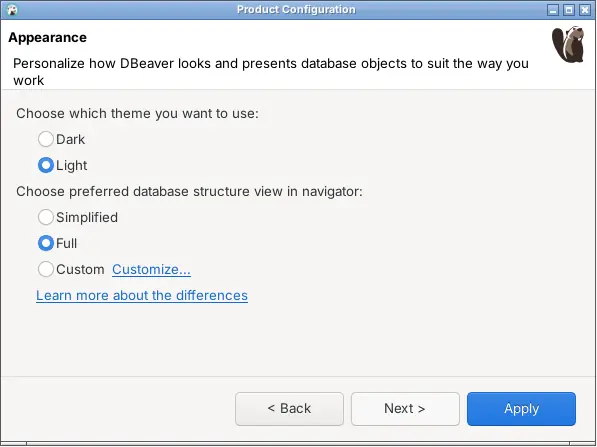
The navigator choice is the one worth thinking about. Full shows every folder DBeaver knows about. Simplified “shows only schemas and tables skipping extra folders, constraints and other database metadata”, which is what most people want if they mainly query data. You can change any of this later from Help > Show Product Configuration.
A tour of the DBeaver interface
DBeaver is built on Eclipse, the Java IDE, and it shows. The main window is a grid of panels (Eclipse calls them views), each with its own toolbar, and editors open as tabs in the middle. Here’s the main window with a query open, and what the important parts do:
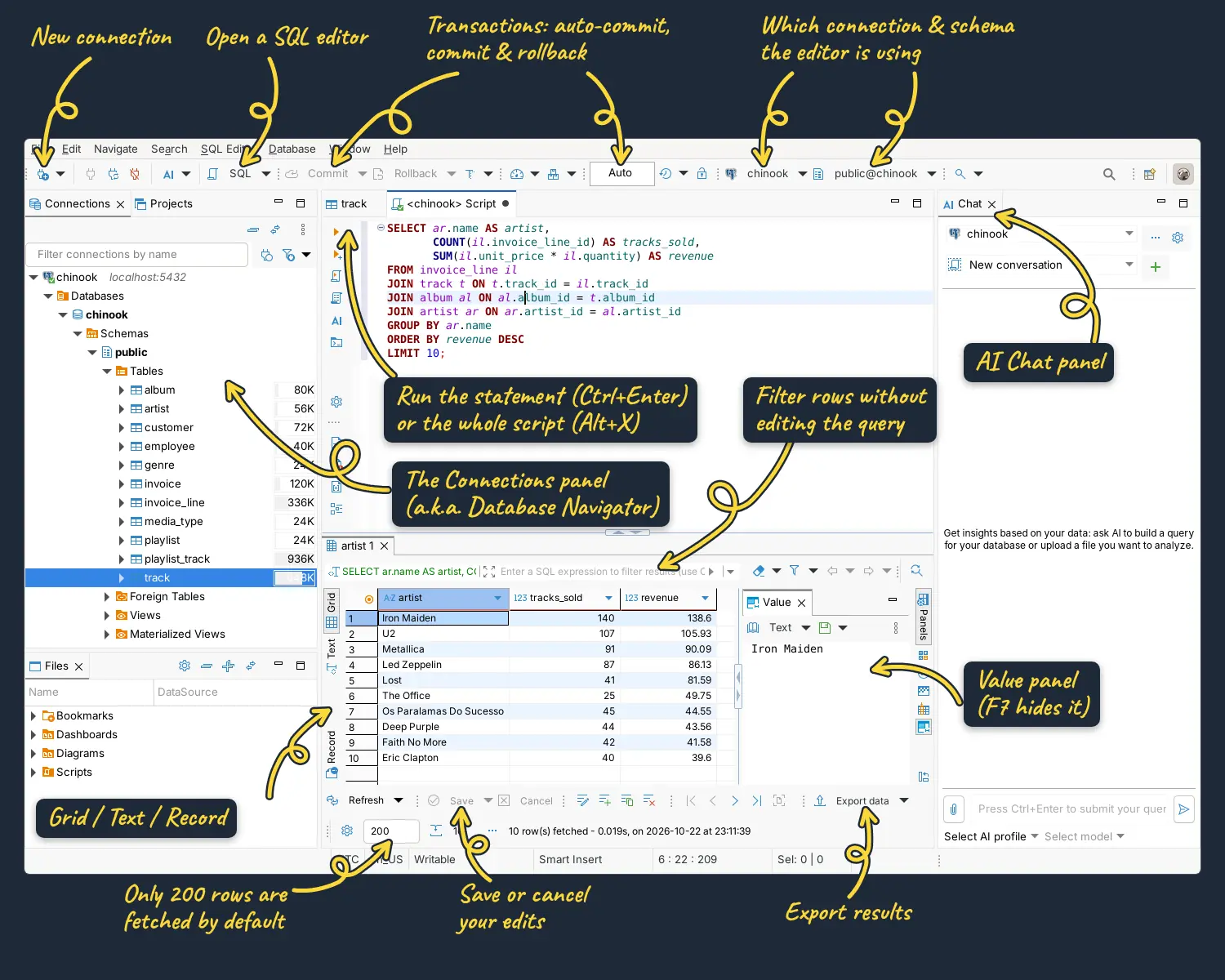
The areas you’ll use most:
- Connections panel (top left): every database you’ve set up, as a tree. Older versions called it the Database Navigator.
- Files panel (bottom left): saved SQL scripts, bookmarks, dashboards and ER diagrams.
- Editor area (middle): SQL editors and table editors open here as tabs.
- Results panel (under the SQL editor): the results of your queries.
- AI Chat (right): open by default if you left AI integration on in the setup wizard. Close it with the X on its tab if you don’t use it.
- Main toolbar: new connection, connect and disconnect, open a SQL editor, the transaction controls, and the two dropdowns that say which connection and schema the current editor is using.
Every panel can be dragged around, minimized or closed, and double-clicking a tab maximizes it. That’s handy, but it also means it’s easy to lose a panel. If you do, Window > Reset Perspective puts everything back the way it was.
Connect to a database
Connecting takes five steps. Here’s how to connect DBeaver to PostgreSQL; other databases work the same way with different fields.
1. Open the new connection wizard
Click the plug icon with a plus sign at the far left of the toolbar, or press Shift+Ctrl+N. DBeaver asks which database you want to connect to:
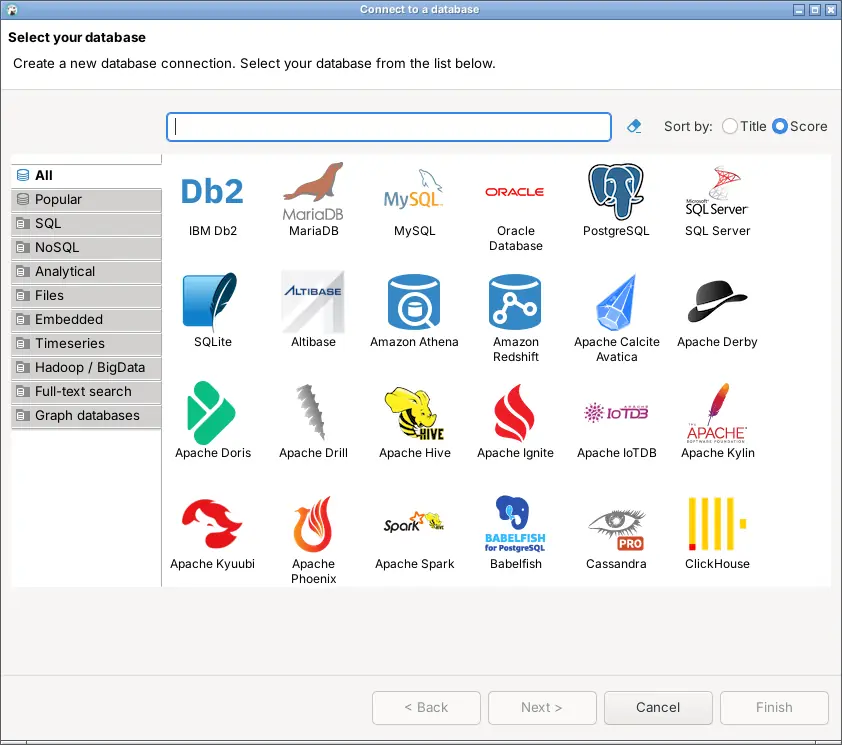
The grid scrolls a long way. Type the name of your database in the search box rather than hunting for its logo, then select it and click Next.
2. Pick a driver
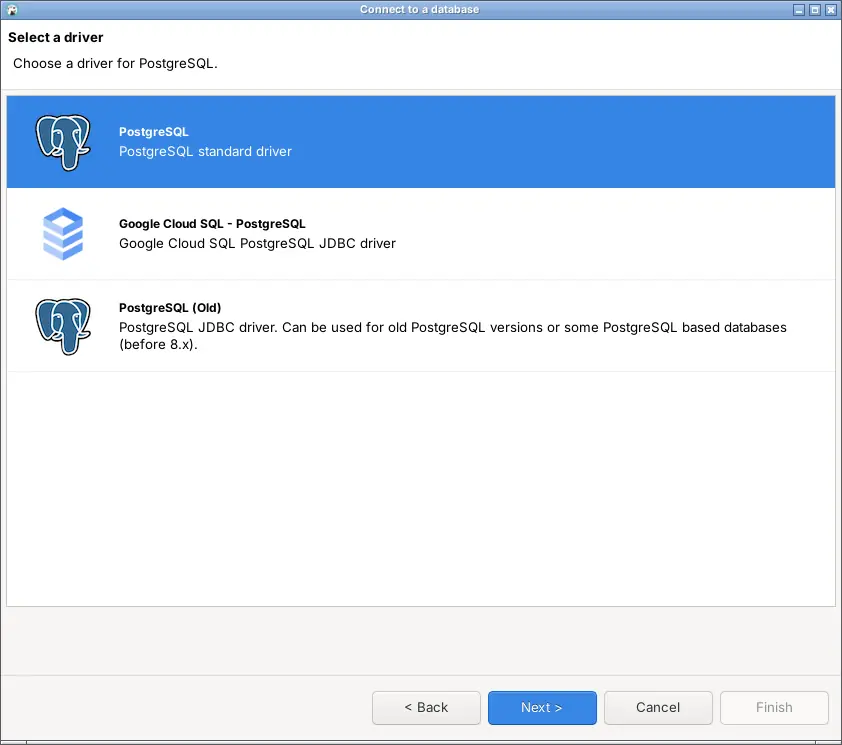
Some databases have more than one driver. PostgreSQL has three, and the first one, PostgreSQL standard driver, is the one you want unless you’re connecting to Google Cloud SQL or a PostgreSQL older than 8.
3. Fill in the connection settings
This is the screen that matters. Enter the Host, Port, Database, Username and Password:
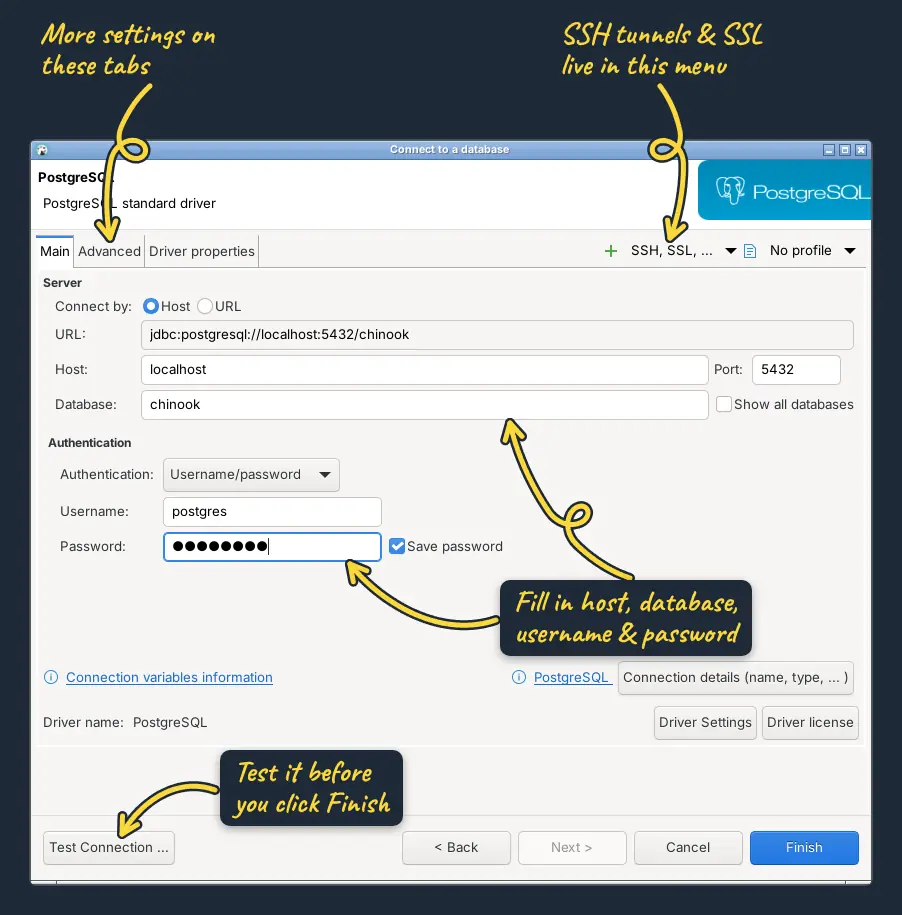
A few things to know about this screen:
- Tick Show all databases if you want to see every database on the server. Otherwise DBeaver only shows the one you typed in.
- SSH tunnels and SSL aren’t on this screen at all. They’re in the SSH, SSL, … dropdown at the top right.
- The Advanced and Driver properties tabs hold more options, down to the JDBC driver’s own settings. You can usually leave them alone.
- If you have a connection URL instead, switch Connect by from Host to URL and paste it in.
4. Test the connection and download the driver
Click Test Connection before you click Finish. The first time you connect to a type of database, DBeaver doesn’t have its JDBC driver yet, and offers to download it:
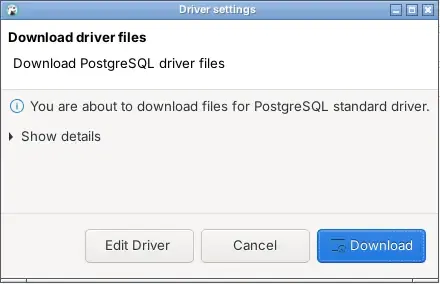
Click Download. If your computer can’t reach the internet, the download fails, and you’ll need to give DBeaver the driver’s jar files yourself with Edit Driver. Once the driver is in place, the test reports “Connected” along with the server’s version.
5. Click Finish
The new connection appears in the Connections panel, named after the database. To rename it, right-click it and choose Edit Connection (F4), then open its General page. That’s also where you set its Connection type: Development, Test or Production, which DBeaver colors white, green and red so you can tell your production database apart.
Browse your database in the Connections panel
Click the arrow next to your connection to connect and expand it. Tables are a fair way down: for PostgreSQL you expand the connection, then Databases, the database, Schemas, the schema (usually public), and finally Tables.
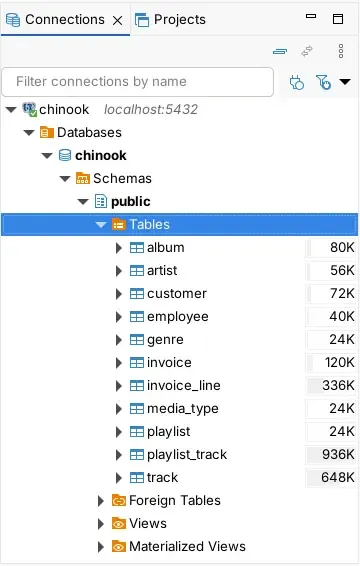
The number next to each table is how much space it takes up. If you only ever need tables, the Simplified navigator from the setup wizard skips most of these folders. To find a connection when you have dozens, type in the Filter connections by name box at the top.
Open a table: Properties, Data and Diagram
Double-click a table (or select it and press F4) to open it. Every table opens in an editor with three tabs:
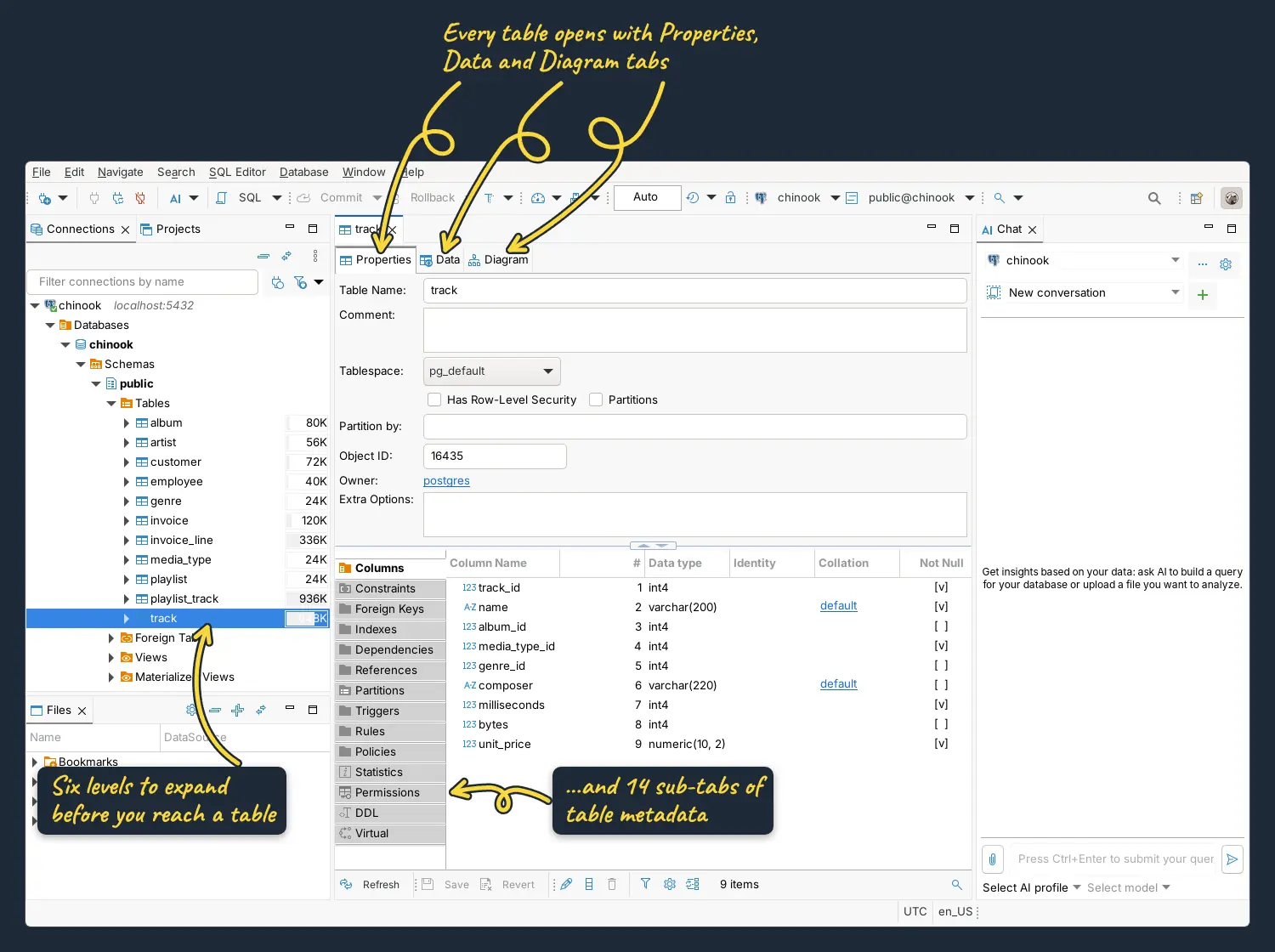
Properties opens first, which surprises people who wanted to see the data. It shows the table’s name, comment, tablespace and owner, then 14 more tabs of metadata down the left: Columns, Constraints, Foreign Keys, Indexes, Dependencies, References, Partitions, Triggers, Rules, Policies, Statistics, Permissions, DDL and Virtual. DDL is the useful one for most people, as it shows the table’s CREATE TABLE statement.
View and edit table data
The Data tab shows the table’s rows in a spreadsheet-style grid. To change a value, double-click the cell, type, and press Enter. DBeaver highlights the changed cell, but nothing is written to the database until you click Save at the bottom of the grid. Cancel throws your changes away.
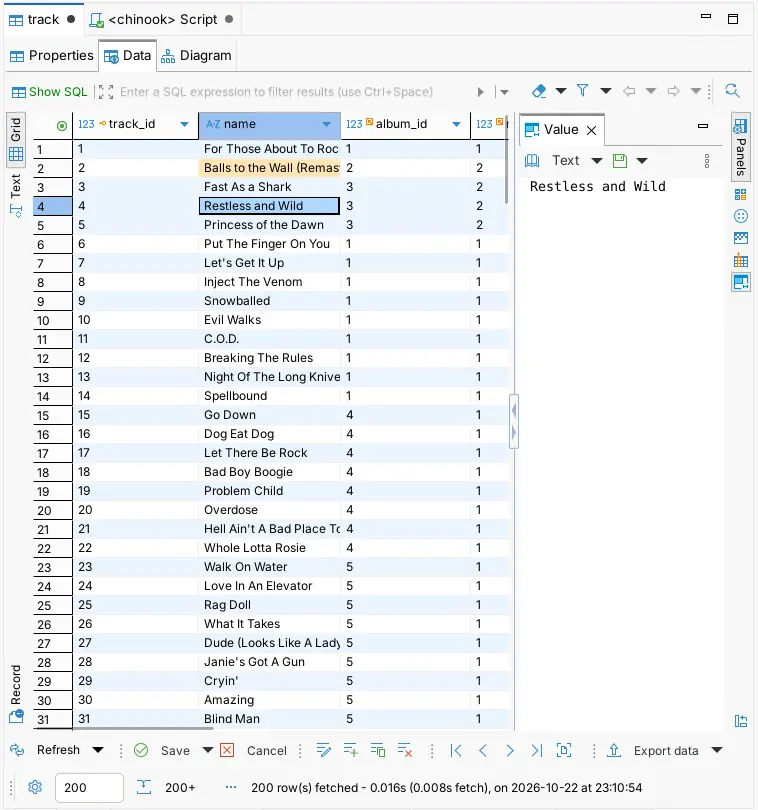
DBeaver starts in auto-commit mode (the toolbar says Auto), so Save writes straight to the database. If you switch to manual commit, Save only changes your transaction, and you also need to click Commit in the toolbar, or Rollback to undo.
To narrow down the rows, type a condition into the filter box above the grid, as you would after a WHERE. For example, composer LIKE '%Mercury%' shows only the tracks with Mercury in their composer credits. Press Ctrl+Space in that box for column names.
View an ER diagram
The Diagram tab draws the table and every table it has a foreign key to or from:
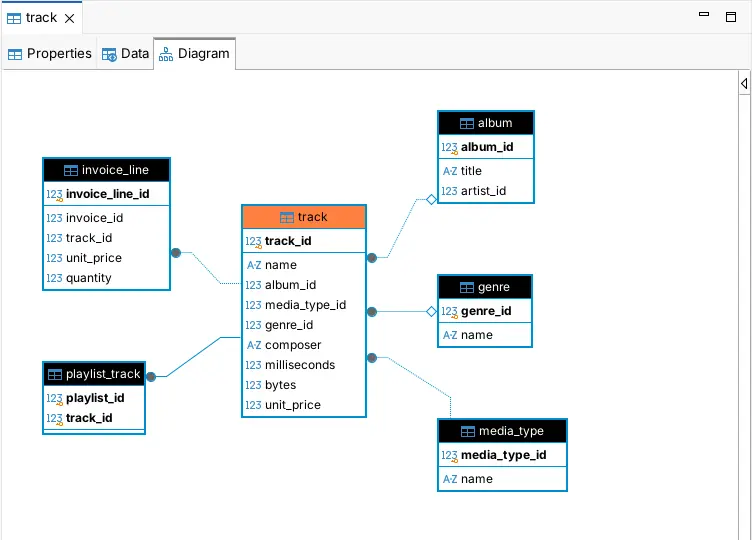
For a diagram of a whole schema, right-click the schema in the Connections panel and choose View Diagram.
Write and run SQL queries
Select your connection in the Connections panel and click SQL in the toolbar, or press Ctrl+] for a brand new script. DBeaver opens a script tab named after the connection (<chinook> Script), and the two dropdowns in the toolbar show which connection and schema it runs against. Use Ctrl+9 and Ctrl+0 to switch them.
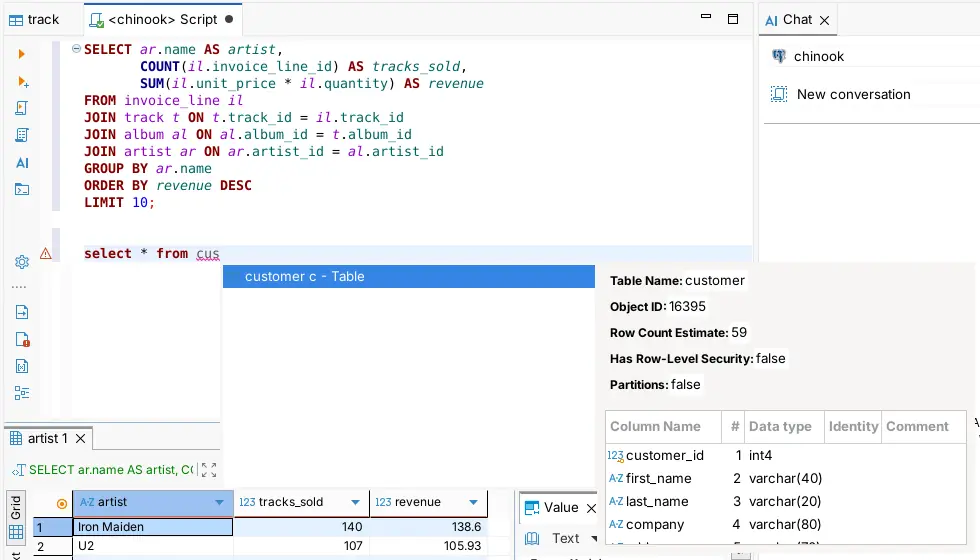
Type a query and press Ctrl+Enter to run it. The annotated screenshot of the main window above shows the result: the top 10 artists by sales in the Chinook database.
SELECT ar.name AS artist,
       COUNT(il.invoice_line_id) AS tracks_sold,
       SUM(il.unit_price * il.quantity) AS revenue
FROM invoice_line il
JOIN track t ON t.track_id = il.track_id
JOIN album al ON al.album_id = t.album_id
JOIN artist ar ON ar.artist_id = al.artist_id
GROUP BY ar.name
ORDER BY revenue DESC
LIMIT 10;
The buttons down the left side of the editor are the different ways to run SQL:
- Ctrl+Enter runs the statement under the cursor. DBeaver works out where a statement starts and ends from semicolons and blank lines, so you can keep lots of queries in one script and run them one at a time.
- Ctrl+\ runs the statement into a new results tab instead of replacing the current one.
- Alt+X runs the whole script. Each query gets its own results tab, plus a Statistics tab.
- Shift+Ctrl+E shows the query’s execution plan.
As you type, DBeaver suggests table and column names, and Ctrl+Space brings the suggestions up whenever you want them. It shows details of the table you’re about to pick, too:
Get around the results panel
The results panel has its own toolbar, and a few things in it confuse everyone at first:
- Only the first 200 rows are fetched. The row count at the bottom says “200+” when there are more. Scroll to the bottom of the grid and DBeaver fetches the next 200, or change the 200 in the box at the bottom.
- The Value panel on the right of the grid shows the selected cell’s full value. Press F7 to hide it and get the space back.
- Grid, Text and Record (the vertical tabs on the left) switch between the spreadsheet view, a plain text table, and a one-row-at-a-time view. Tab toggles the record view.
- Save and Cancel work just like in the table’s Data tab: you can edit the results of a query on a single table.
Generate SQL from a table
You don’t have to write every statement by hand. Right-click a table in the Connections panel and open Generate SQL for a ready-made SELECT, INSERT, UPDATE, DELETE, MERGE and more, or its DDL:
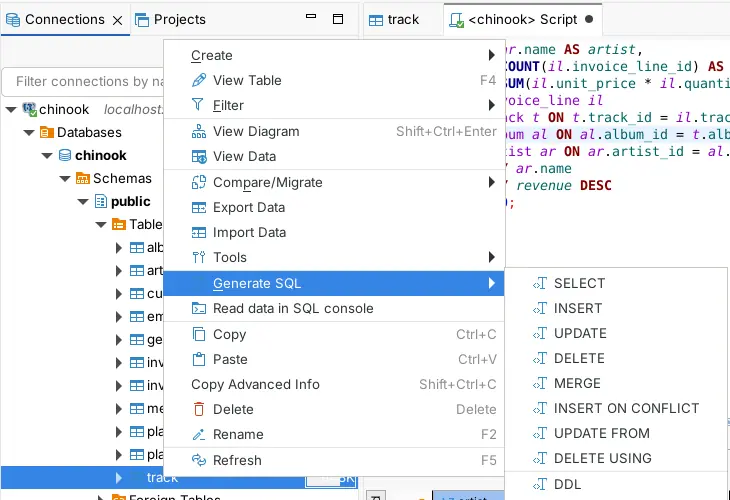
The same menu has View Diagram, Export Data, Import Data and Compare/Migrate, and Read data in SQL console opens a SQL console that selects every column of the table and runs it.
Export data from DBeaver
To export a whole table, right-click it and choose Export Data. To export the results of a query, click Export data at the bottom of the results panel. Either way, DBeaver opens its Data Transfer wizard:
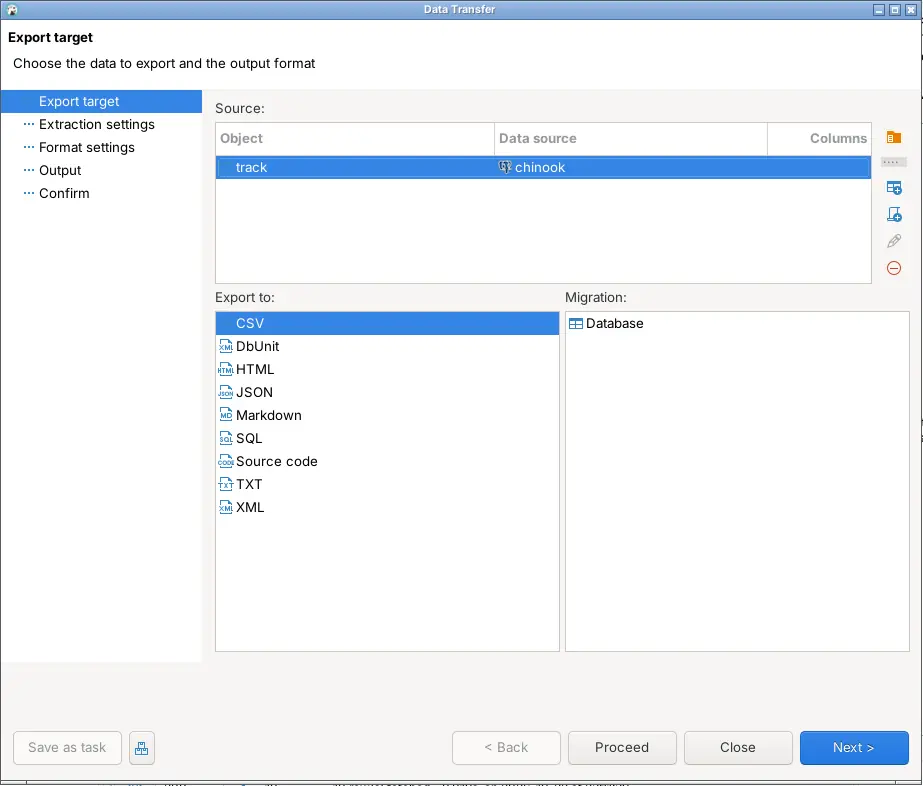
Pick a format and click Next through the five steps:
- Export target: the format. DBeaver Community 26.2 lists CSV, DbUnit, HTML, JSON, Markdown, SQL, Source code, TXT and XML. There’s no Excel format in that list, so to get data into Excel, export a CSV and open that.
- Extraction settings: whether to open a separate connection, and whether to count the rows first.
- Format settings: the delimiter, quoting, header row and so on for the format you picked.
- Output: the folder and file name. It defaults to your home folder, with the table name and a timestamp as the file name. Copy to clipboard skips the file entirely.
- Confirm: a summary of everything, and the Proceed button.
You can click Proceed on any step once the earlier ones are how you want them.
Change DBeaver’s settings
Almost everything in DBeaver can be configured in Window > Preferences, and there’s a lot of it. The Editors section alone has six pages, most of them with sub-pages of their own:
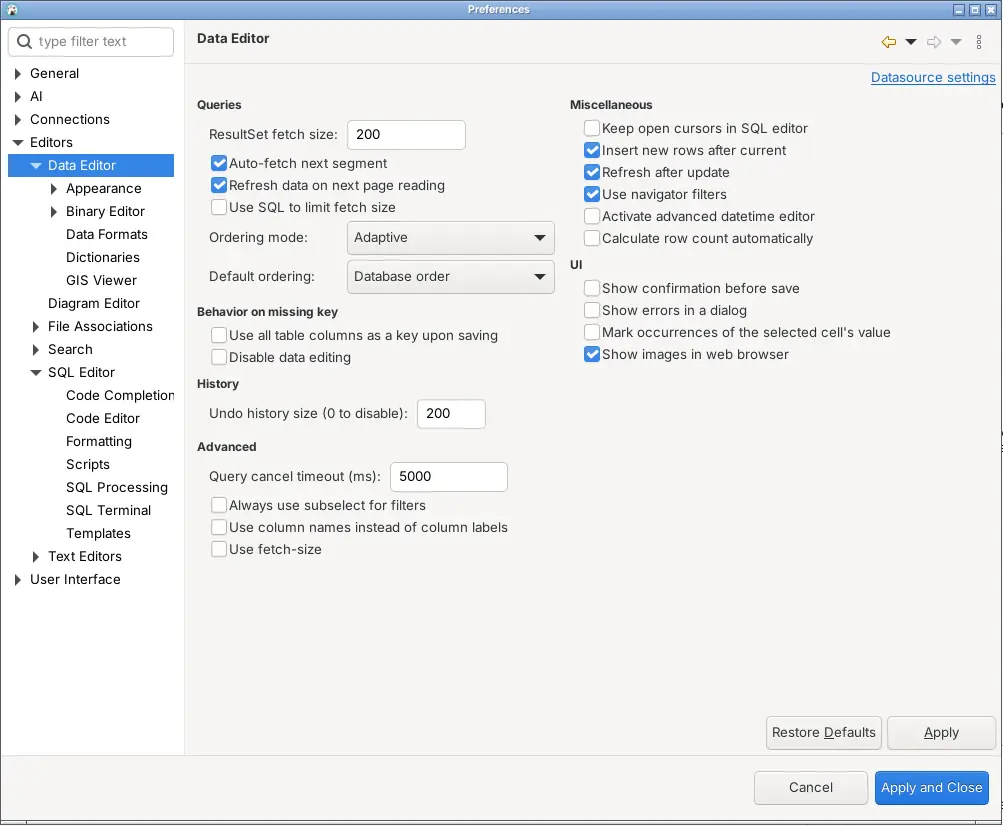
The settings beginners usually look for:
- Editors > Data Editor > ResultSet fetch size: how many rows a query fetches at a time (200).
- Editors > SQL Editor > Code Completion: autocomplete behavior.
- Editors > SQL Editor > Formatting: how Shift+Ctrl+F formats your SQL.
- User Interface: the theme and fonts.
Rather than browsing the tree, type what you’re after into the filter box at the top of the window.
DBeaver keyboard shortcuts
These are the shortcuts we found most useful, all checked against DBeaver 26.2. Shift+Ctrl+L lists every shortcut, and the DBeaver documentation has the full list.
| Shortcut | What it does |
|---|---|
| Shift+Ctrl+N | New database connection |
| F4 | Open the selected table or object |
| Ctrl+Enter | Run the statement under the cursor |
| Ctrl+\ | Run the statement in a new results tab |
| Alt+X | Run the whole script |
| Shift+Ctrl+E | Show the execution plan |
| Ctrl+Space | Autocomplete |
| Shift+Ctrl+F | Format the SQL |
| Ctrl+/ | Comment or uncomment the line |
| Ctrl+9 / Ctrl+0 | Change the editor’s connection / schema |
| F7 | Show or hide the results panels |
| Ctrl+= / Ctrl+- | Zoom the SQL editor in / out |
| Ctrl+3 | Search for any command by name |
| Shift+Ctrl+L | Show all shortcuts |
Common DBeaver problems
Where did the Database Navigator go?
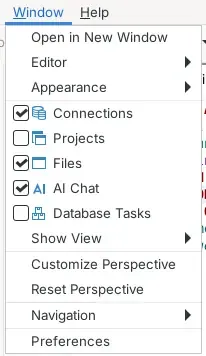
In DBeaver 26 the navigator is called Connections. If you’ve closed it, reopen it from the Window menu, or use Window > Reset Perspective to put every panel back where it started:
Why does my query only show 200 rows?
DBeaver fetches results 200 rows at a time. Scroll to the bottom of the grid to fetch more, or raise the ResultSet fetch size in Preferences, as above. Aggregates like COUNT(*) are calculated by the database, so they’re always over every row.
Why didn’t my changes save?
Edits in the data grid aren’t sent to the database until you click Save, and in manual commit mode they aren’t permanent until you click Commit as well.
How do I make the text bigger?
Ctrl+= and Ctrl+- zoom the SQL editor. For the rest of the interface, change the fonts in Window > Preferences > User Interface.
If DBeaver feels like too much
DBeaver can do nearly anything, which is its strength, and also why it took this many screenshots to cover the basics. If you’d rather your database GUI got out of the way, Beekeeper Studio is a free, open source alternative that we make. We’re obviously biased, but it covers the everyday work (connecting, writing SQL, editing data, browsing tables) with a lot less to learn. It isn’t an enterprise suite with every bell and whistle, and that’s the point.
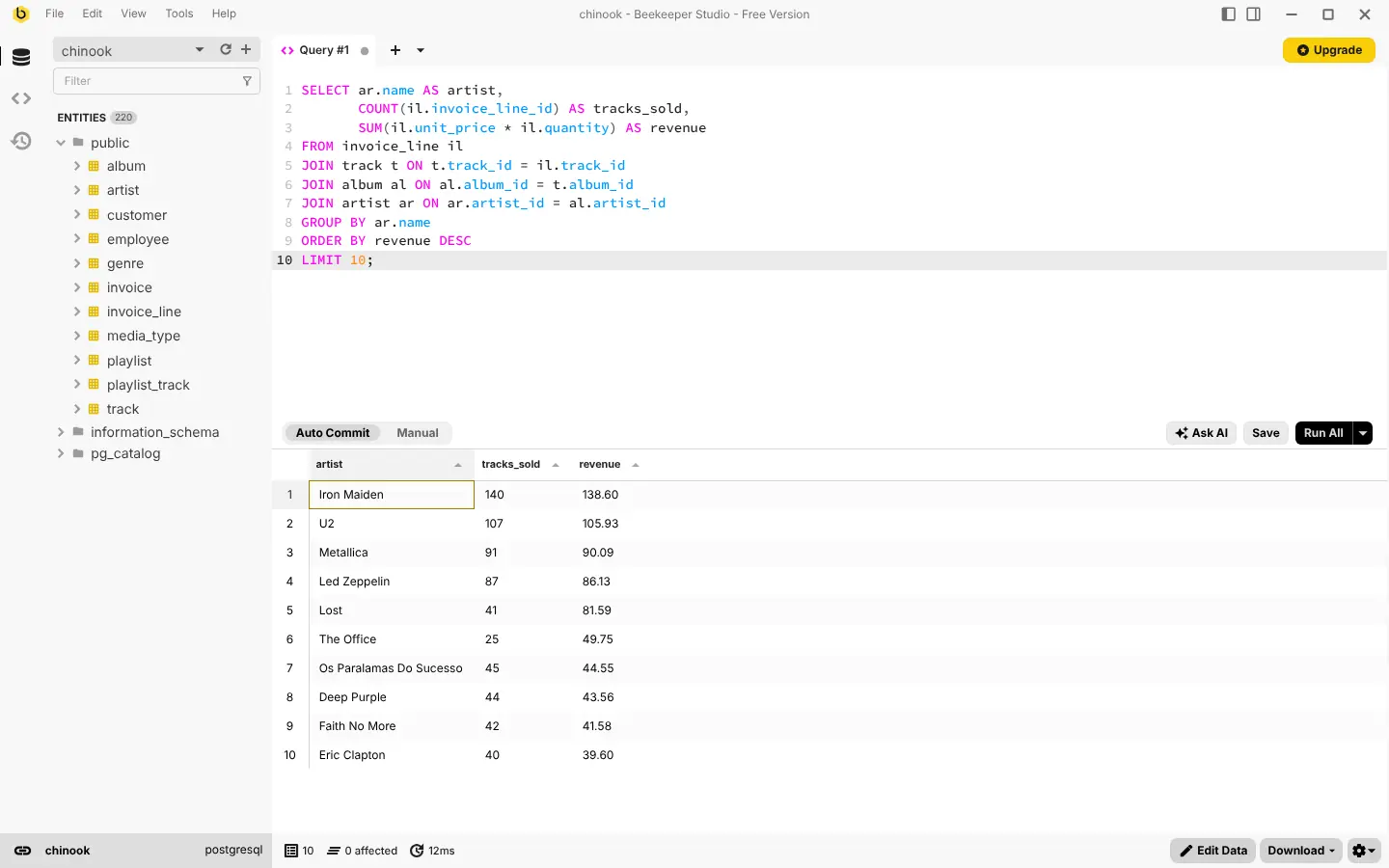
Here’s the same query against the same Chinook database in Beekeeper Studio, with the tables already listed in the sidebar:
I migrated from dBeaver, and I haven’t opened that app since… Its interface is overcrowded, and there’s a lot of junk that you don’t need. - John Nwankwo
For a closer look, see our Beekeeper Studio vs DBeaver comparison or our list of free DBeaver alternatives.
 Beekeeper Studio Is A Free & Open Source Database GUI
Best SQL query & editor tool I have ever used. It provides everything I need to manage my database. - ⭐⭐⭐⭐⭐ Mit
Beekeeper Studio is fast, intuitive, and easy to use. Beekeeper supports loads of databases, and works great on Windows, Mac and Linux.
What Users Say About Beekeeper Studio
"Beekeeper Studio completely replaced my old SQL workflow. It's fast, intuitive, and makes database work enjoyable again."
"I've tried many database GUIs, but Beekeeper strikes the perfect balance between features and simplicity. It just works."